Need to remove pages from a PDF or keep only specific pages? This tutorial shows you exactly how to use the Split PDF tool from PDF Toolkit by Thirdy Gayares using the real interface and actual button labels. You can upload one or many PDFs, choose the pages you want to keep, then download a new PDF in seconds.
Why Use This Split PDF Tool?
Private
PDF processing happens in your browser, so your files stay on your device.
Precise Selection
Select exactly which pages to keep using page cards, toolbar actions, and page ordering.
Multi-PDF Ready
Upload one or many PDFs and split them in one pass while preserving your selected order.
Use the live tool here to follow along with this tutorial.
Open Split PDF ToolQuick Walkthrough (GIF)
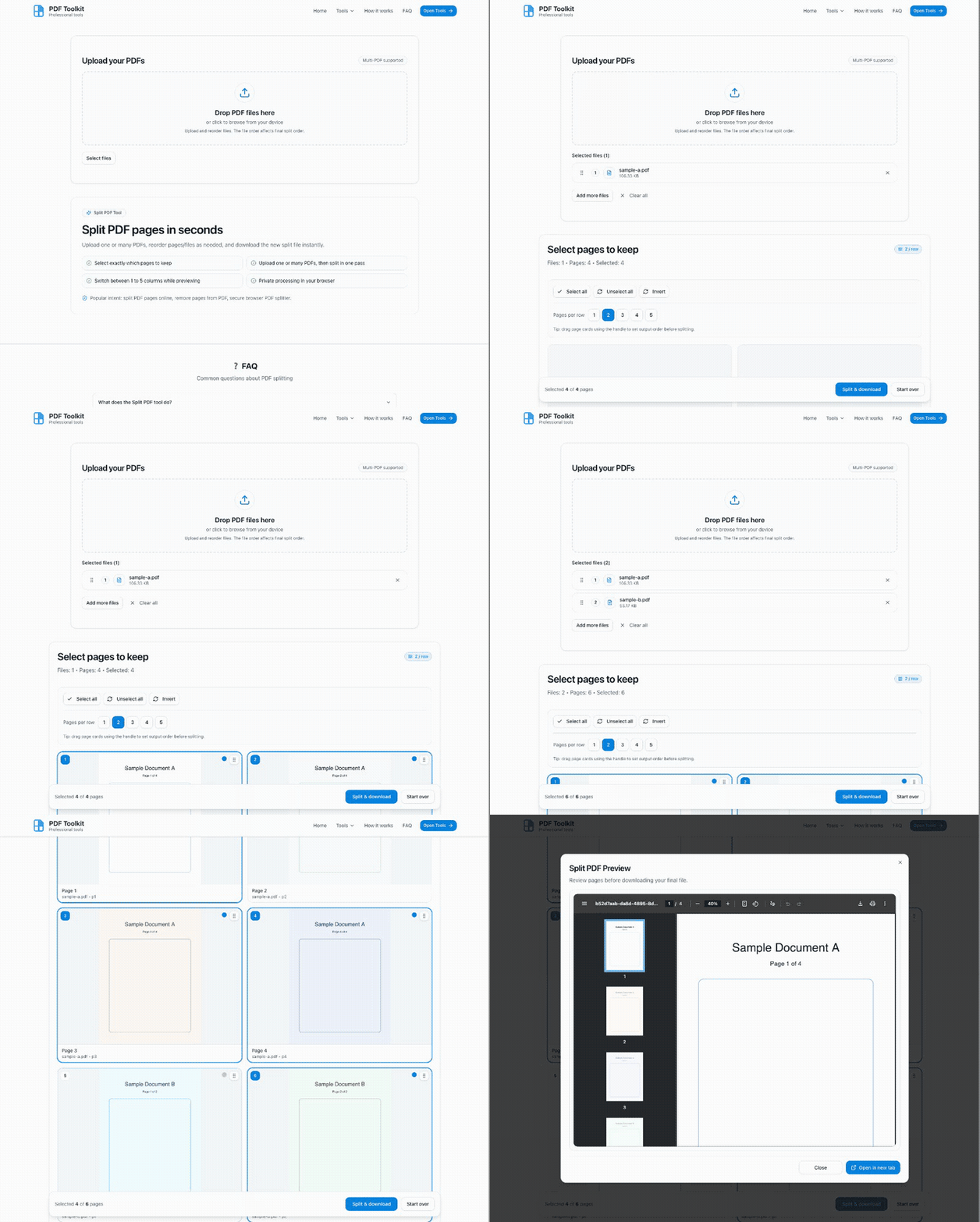
This animation shows the end-to-end flow: upload files, choose pages, click Split & download, then preview and download.
How to Split PDF Pages (Step by Step)
Open the Split PDF Tool
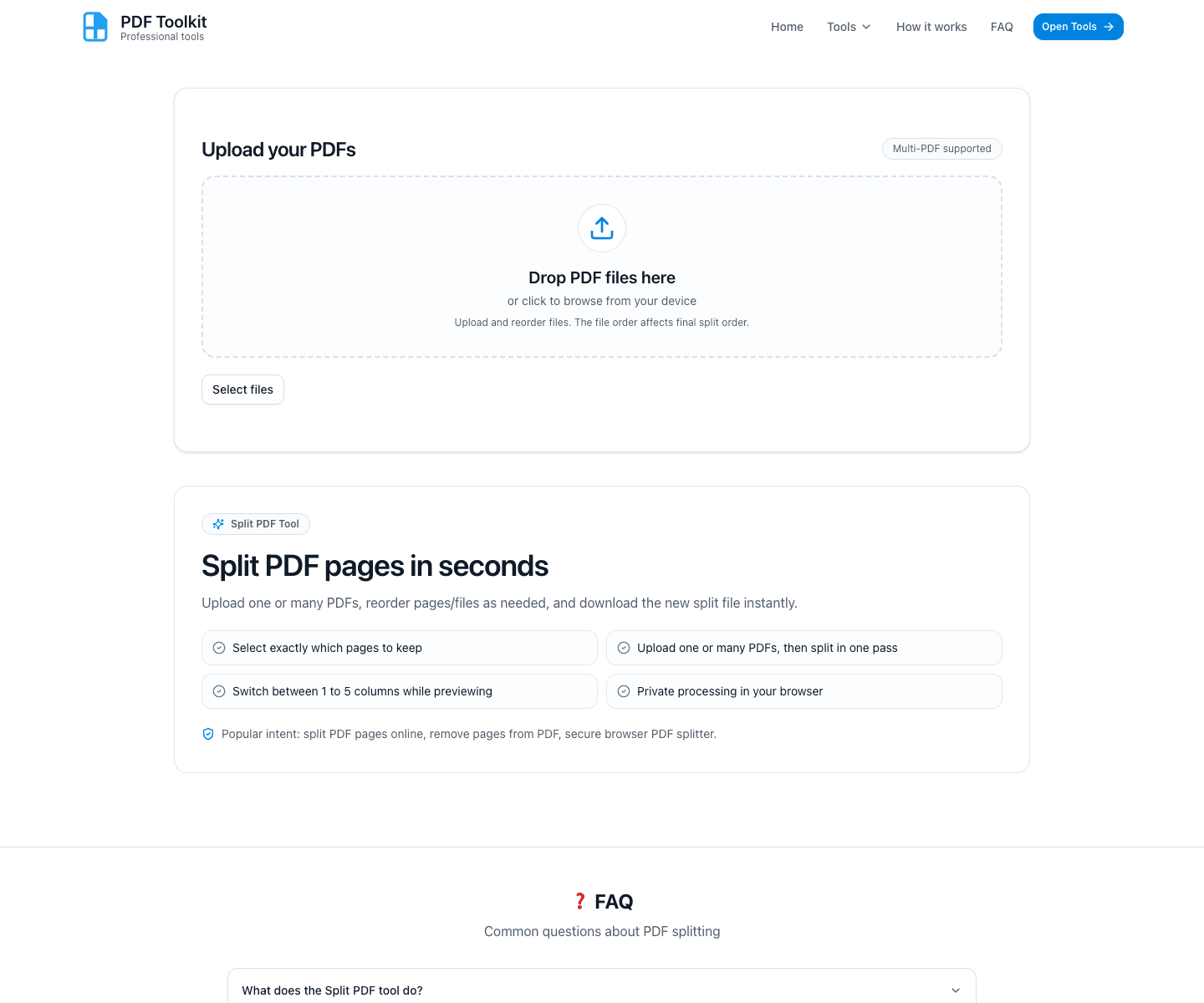
Go to the Split PDF page. You will see an upload area labeled Upload your PDFs and a hero section that explains the tool features.
Upload One or Multiple PDF Files
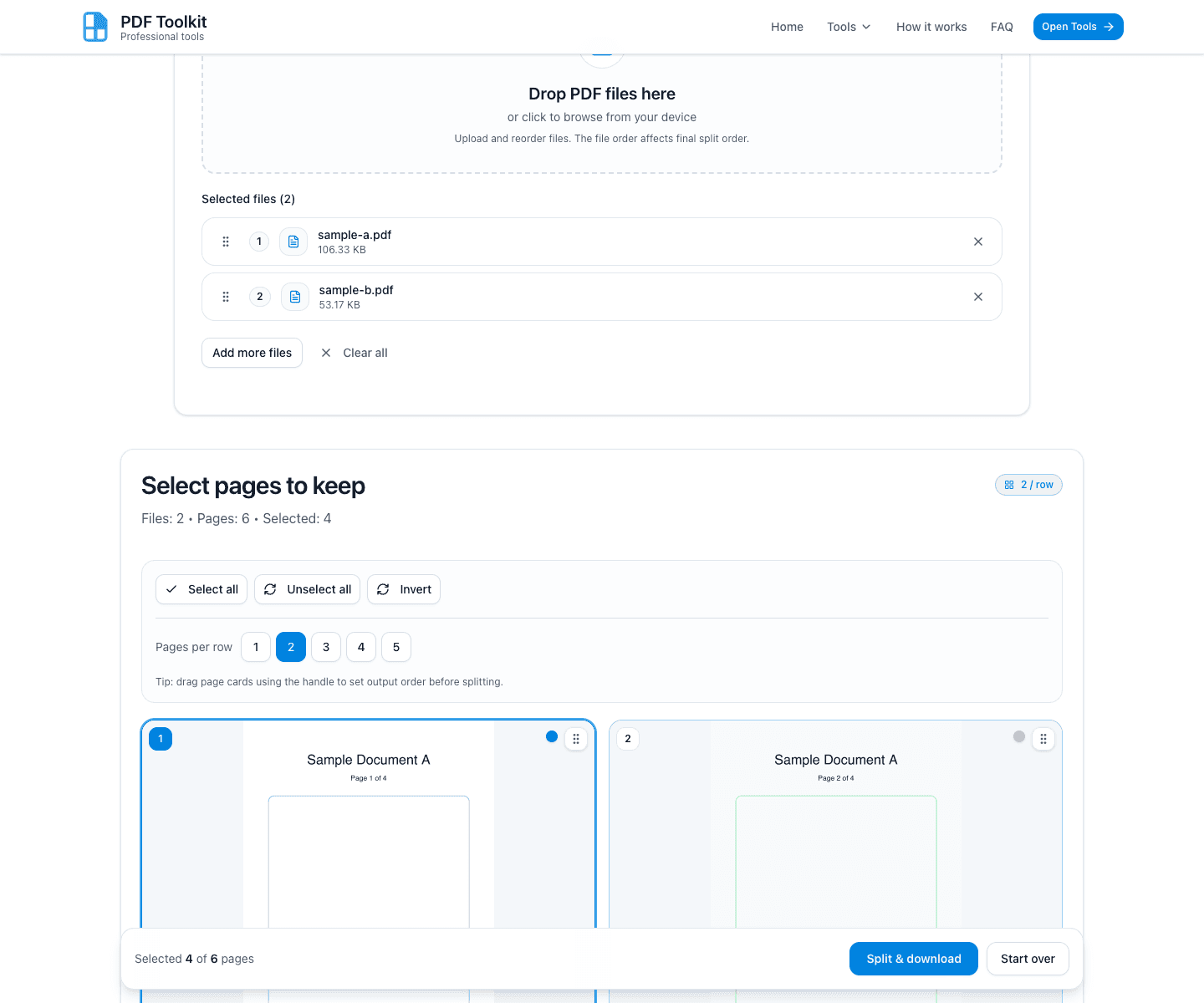
Add your PDFs by either dragging files into the drop zone or clicking Select files. After uploading, the tool shows a file list and starts rendering page thumbnails.
- Use Add more files to include another PDF.
- Use the drag handle beside each file to reorder file sequence.
- Use Clear all if you want to restart the upload step.
Select the Pages You Want to Keep
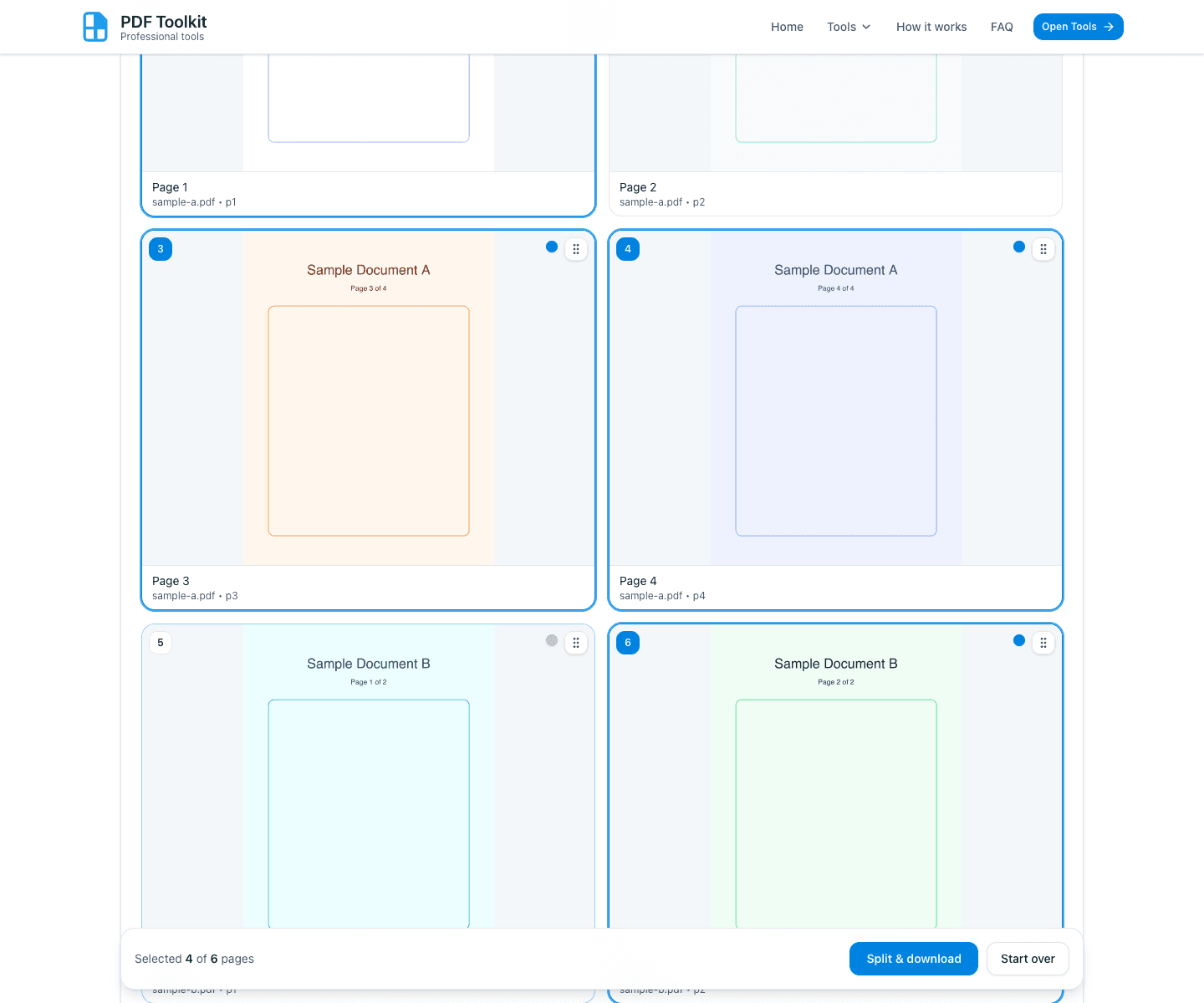
In the Select pages to keep section, click any page card to toggle it on or off. The bottom action bar updates the count (for example, Selected 4 of 6 pages).
- Select all selects every page.
- Unselect all clears all selected pages.
- Invert flips the selection.
- Pages per row lets you change the thumbnail grid view.
- You can drag page cards (using the handle) to change output order before splitting.
Click Split & Download
Once your selection is correct, click the sticky bottom button Split & download. The tool processes your selection locally and opens a download dialog when it is ready.
Rename the Output and Review the Order
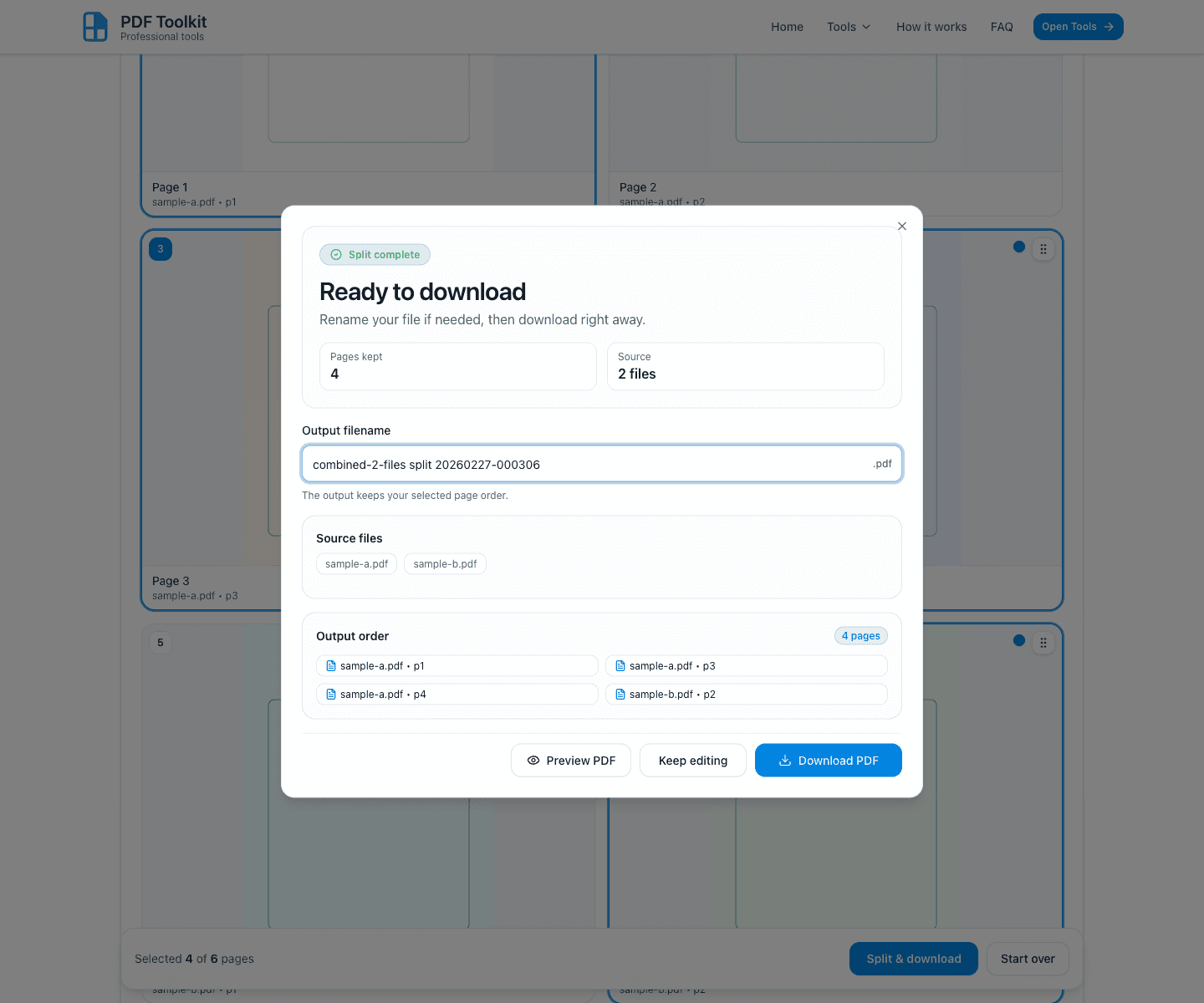
In the Ready to download dialog, you can rename the file in the Output filename field. The dialog also shows:
- How many pages were kept
- How many source files were used
- The output order that will be used in the final PDF
Preview (Optional) and Download the Final PDF
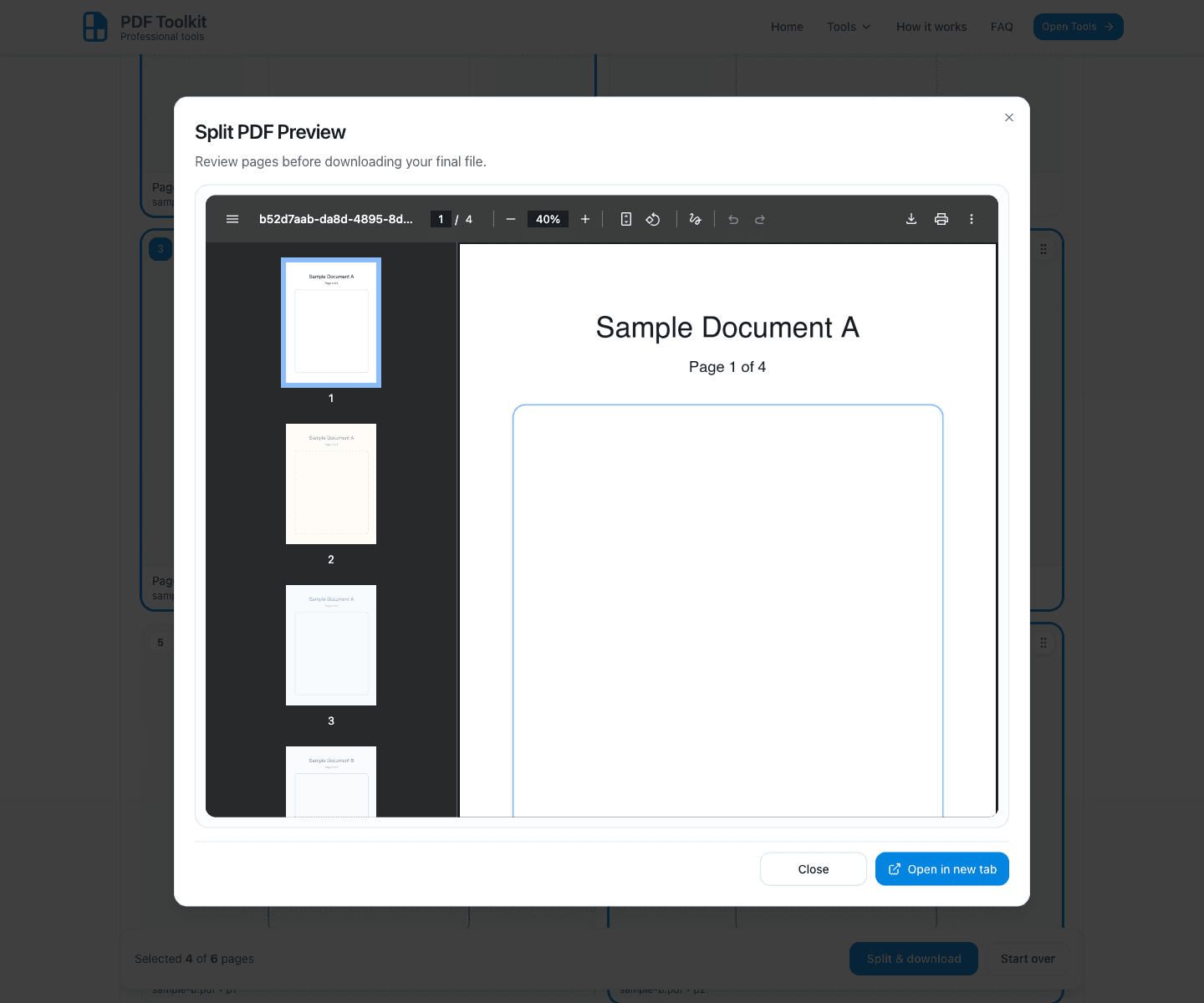
Before downloading, click Preview PDF to inspect the result. If everything looks correct, return to the dialog and click Download PDF.
If you need changes, click Keep editing to go back to the page selection screen.
Tips for Better Results
- Use the page card drag handles to control the final output order.
- Double-check the Output order list before downloading.
- If you uploaded multiple PDFs, review the file order in the upload list first.
- Use Start over when you want to process a completely different set of PDFs.
Try It Now
You can use the Split PDF tool for free at any time. It is fast, secure, and works directly in the browser.
Open Split PDF Tool