This tutorial shows how to use the PDF Overlay tool step by step on the live PDF Toolkit site. You will learn how to upload a base PDF and an overlay PDF, configure page targeting and placement, apply the overlay, preview the result, and download the final overlaid PDF.
Why Use PDF Overlay?
Base + Overlay PDF Workflow
Combine a base PDF and a second overlay PDF in one workflow for letterheads, templates, or stamps.
Precise Placement Controls
Control target pages, overlay page mapping, placement mode, opacity, scale, alignment, and offsets.
Preview Before Download
Open the overlay preview modal to verify placement, opacity, and page mapping before saving the file.
Use the same button labels and option names shown below in the live PDF Overlay tool.
Open PDF Overlay ToolQuick Walkthrough (GIF)
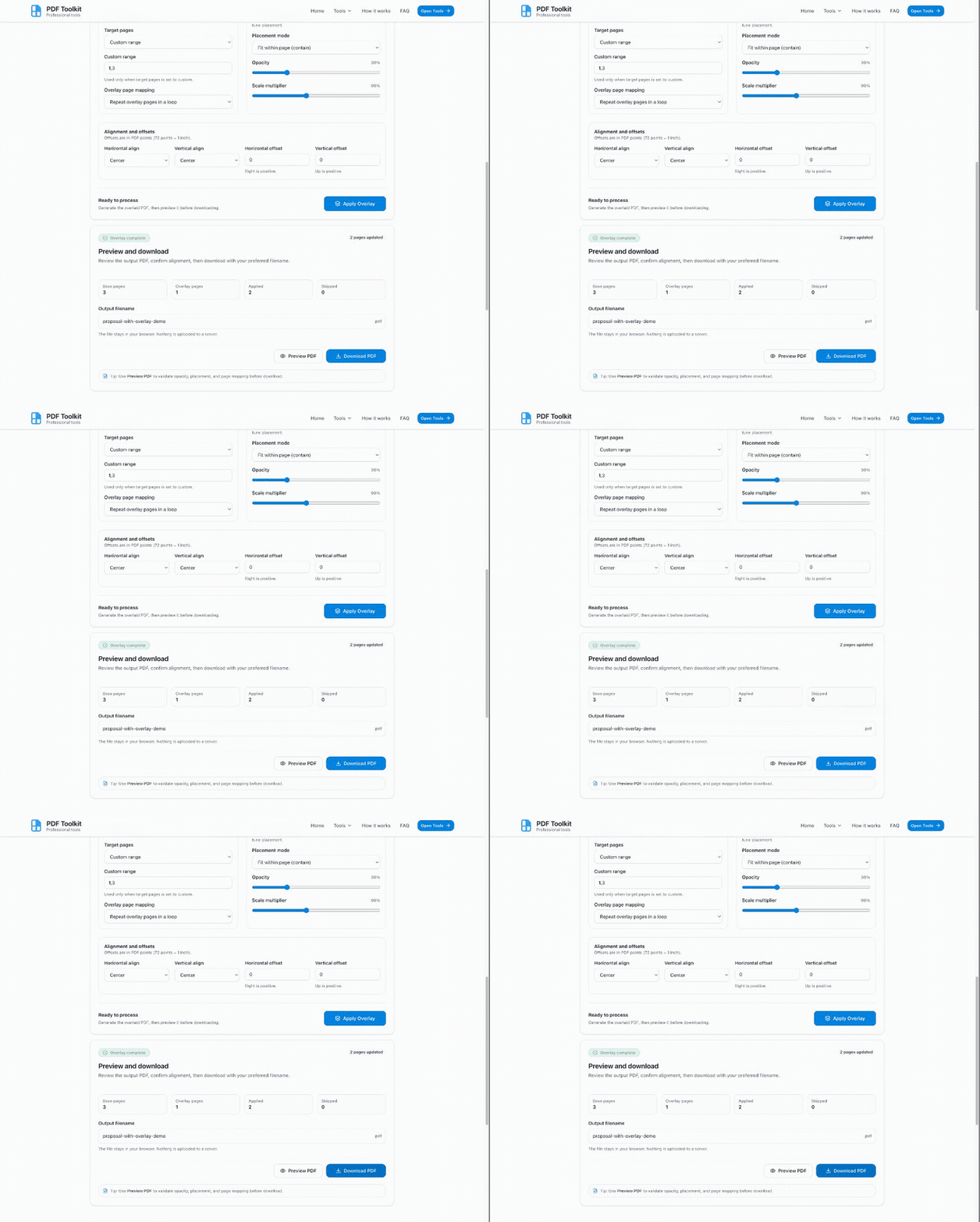
This GIF shows the full workflow: upload both PDFs, configure overlay options, apply overlay, preview the output, and download the final PDF.
How to Overlay PDF Files (Step by Step)
Open the PDF Overlay Tool
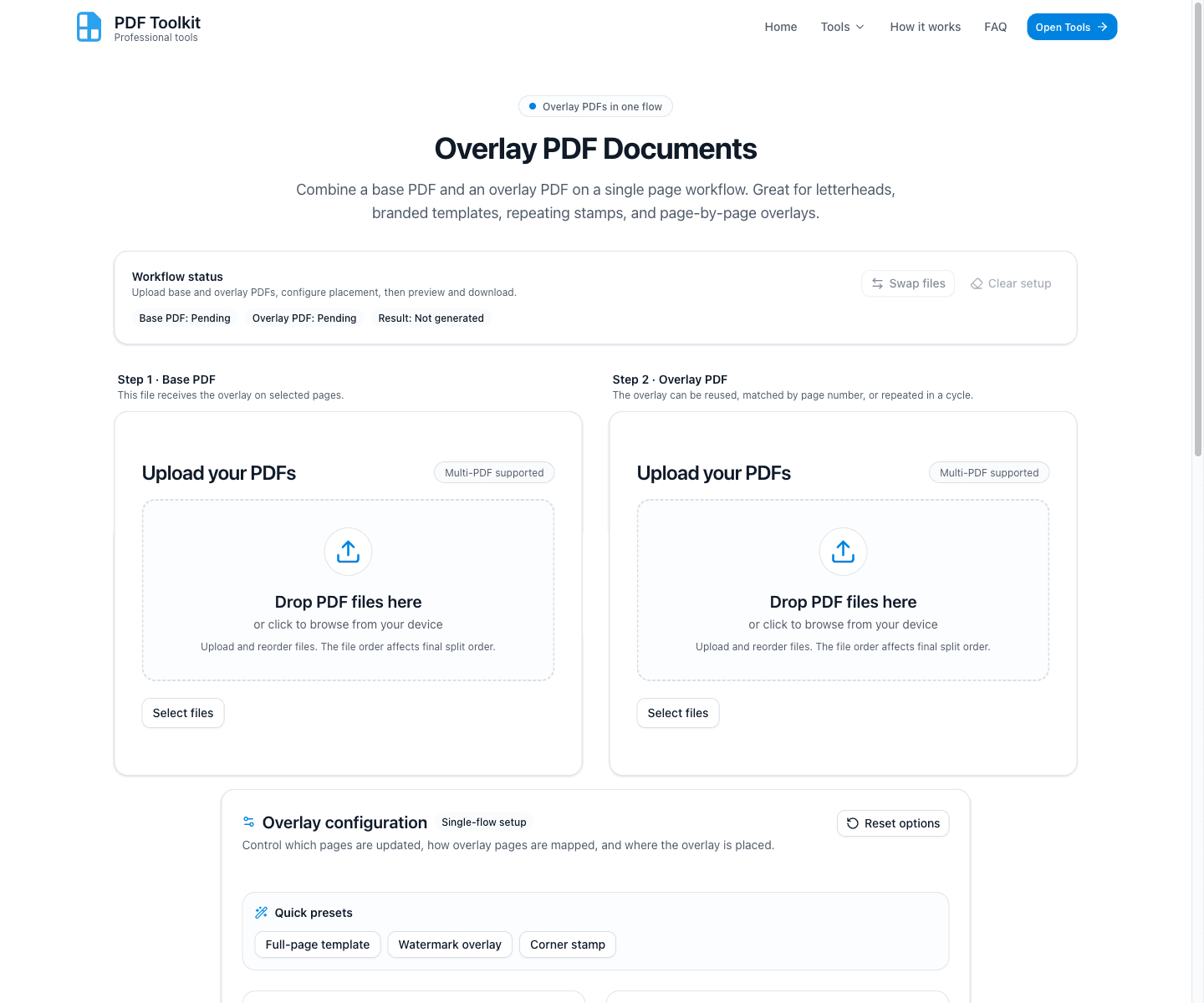
Open the tool and review the layout: Workflow status, Step 1 · Base PDF, Step 2 · Overlay PDF, and the Overlay configuration panel.
Upload the Base PDF and the Overlay PDF
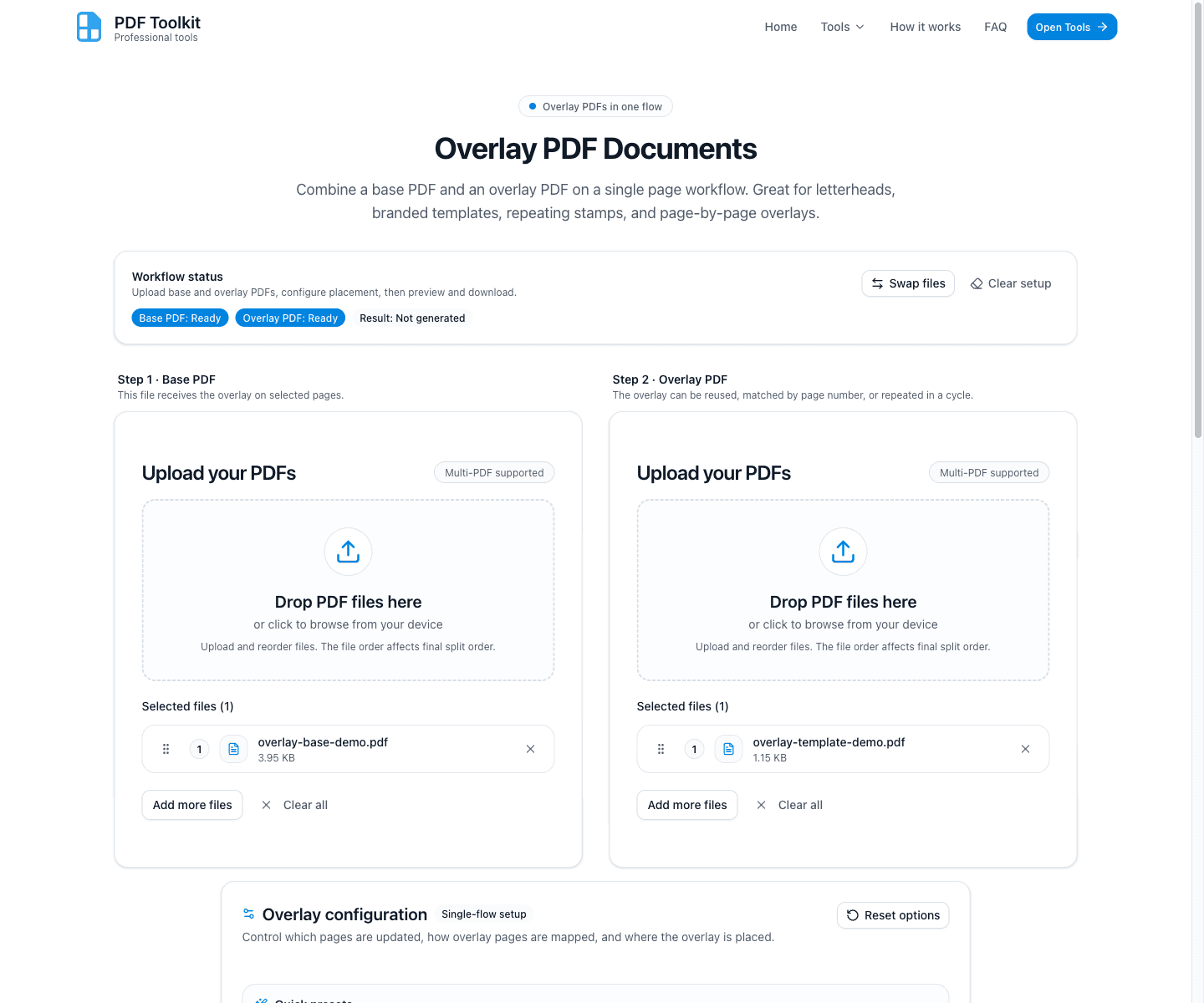
Add one file to each upload card:
- Step 1 · Base PDF: the main document that will receive the overlay
- Step 2 · Overlay PDF: the design/template/stamp document to place on target pages
Once both files are uploaded, the workflow badges switch to Ready and Apply Overlay becomes available.
Configure Page Targeting and Overlay Placement
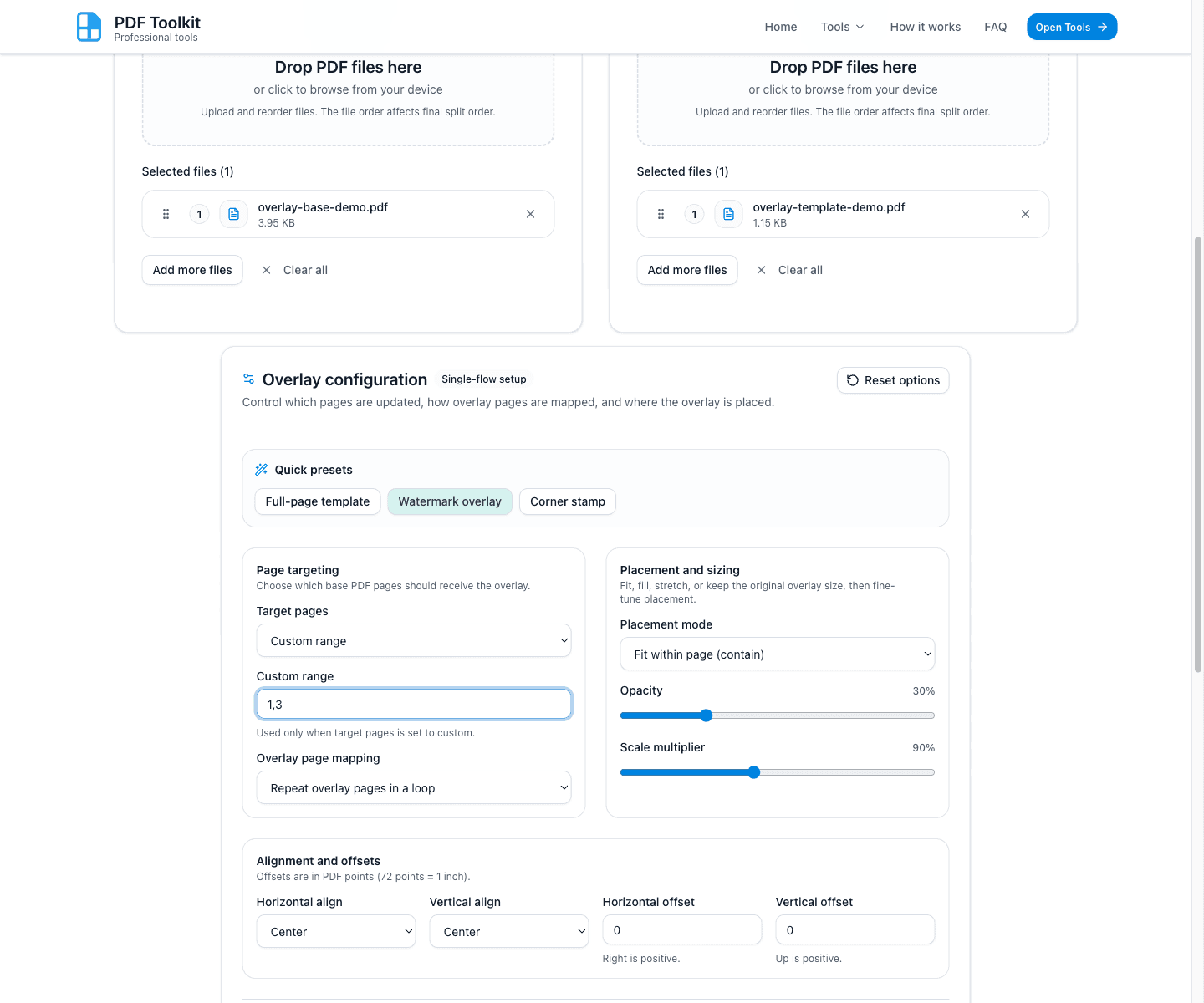
Use the Overlay configuration card to control which pages are updated and how the overlay is placed.
- Quick presets: Full-page template, Watermark overlay, Corner stamp
- Target pages: All pages, First page only, Odd/Even pages, or Custom range
- Overlay page mapping: use first page, match page numbers, or repeat in a loop
- Placement and sizing: placement mode, opacity, and scale multiplier
- Alignment and offsets: horizontal/vertical align plus point offsets
Apply the Overlay and Review the Result Panel
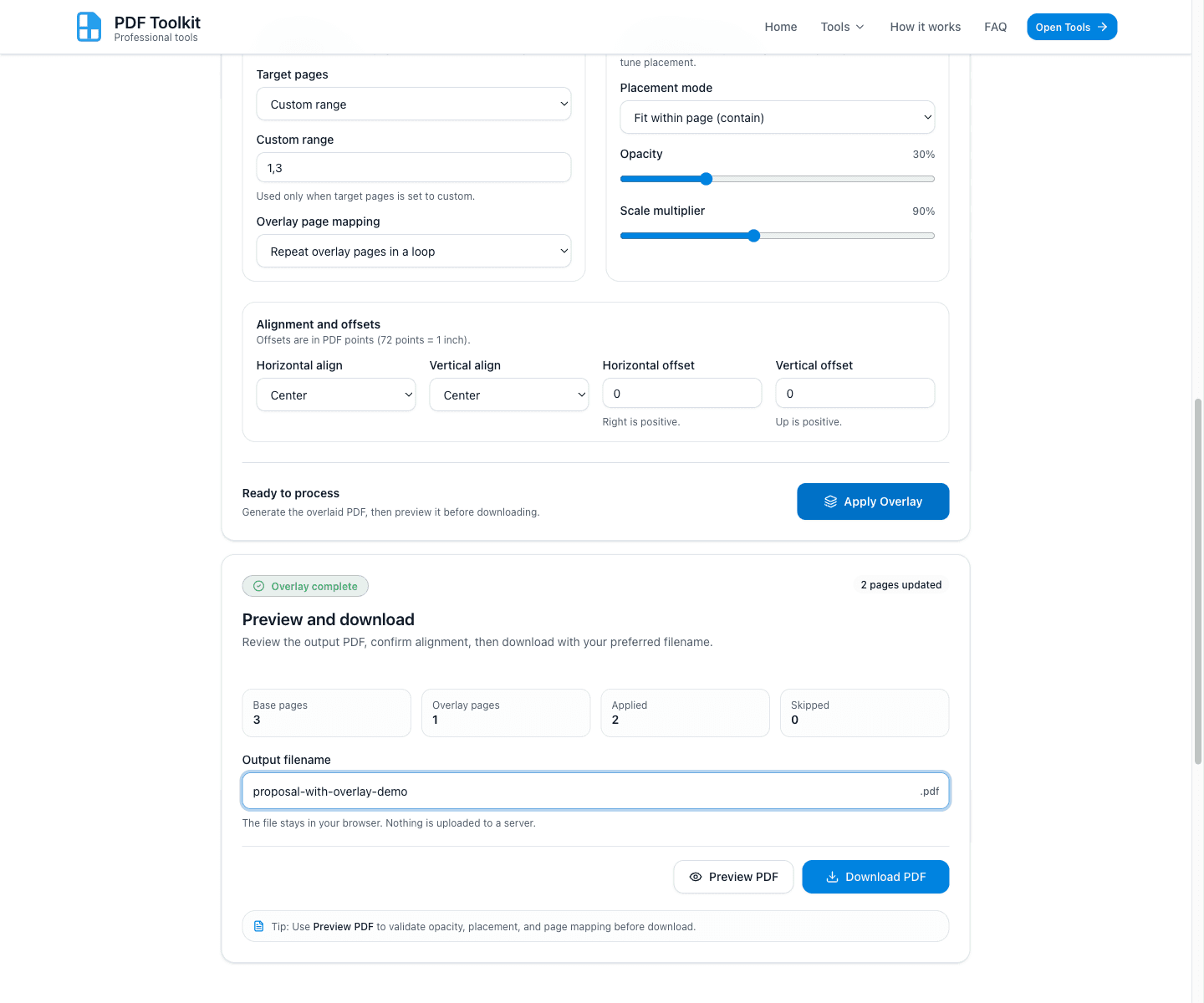
Click Apply Overlay. After processing, the Preview and download panel appears with result stats and actions.
- Stats show Base pages, Overlay pages, Applied, and Skipped
- Edit the Output filename before downloading
- Use Preview PDF to verify alignment and opacity
Preview the Overlaid PDF and Download the Final File
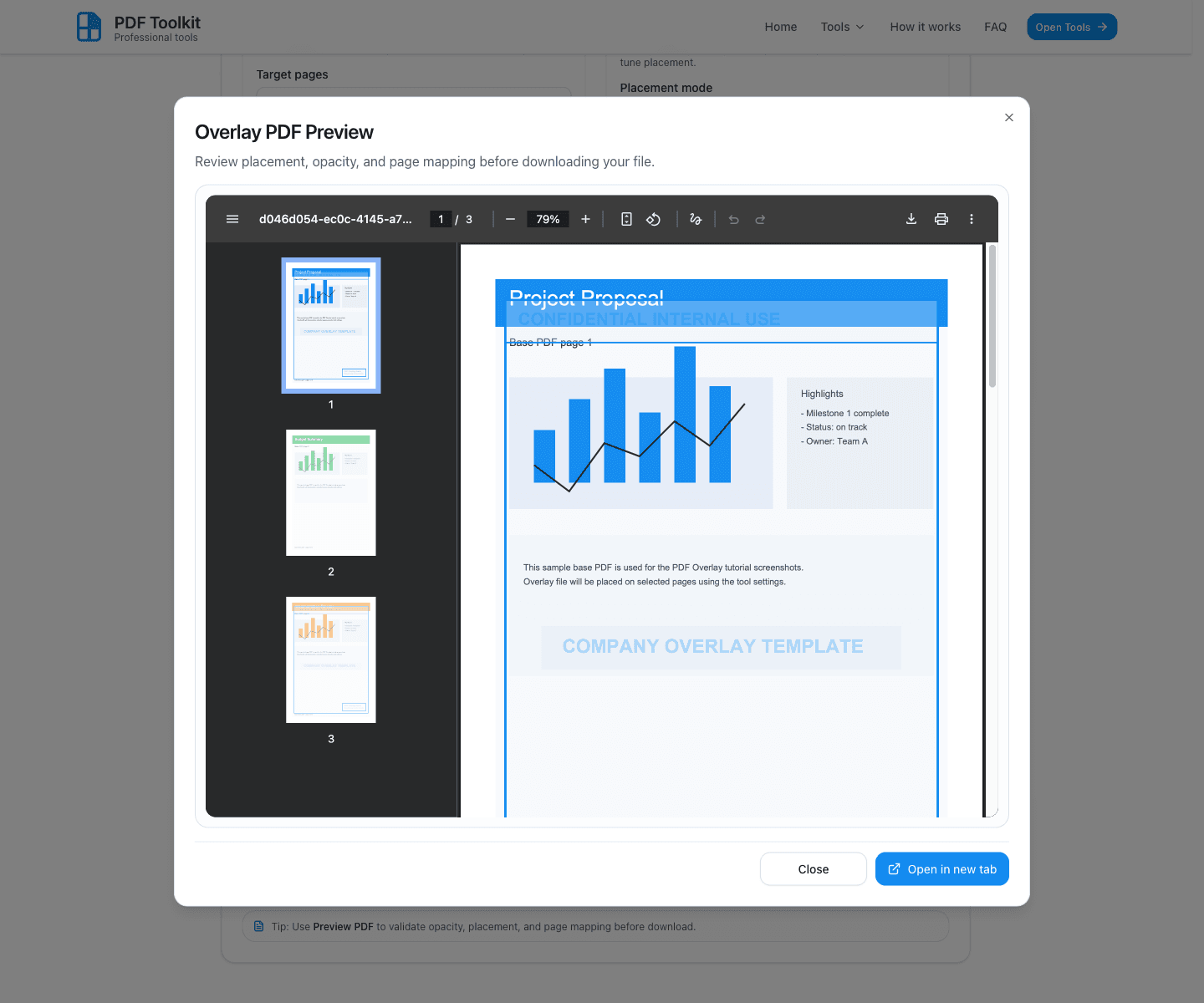
Click Preview PDF to open the Overlay PDF Preview modal. Review placement, opacity, and page mapping in the embedded viewer.
Close the preview, then click Download PDF in the result panel to save the overlaid document.
Best Practices and Notes
- Use the Watermark overlay preset for fast low-opacity overlays like stamps or branding.
- Use Custom range when only selected pages (for example, 1 and 3) should receive the overlay.
- Use Match page numbers when your overlay PDF has a different page design per page.
- Use Repeat overlay pages in a loop when one or more overlay pages should repeat across many base pages.
- Always open Preview PDF before downloading when using custom offsets or fill mode.
Try the Tool
Use the live PDF Overlay tool to combine a base PDF and an overlay PDF, preview the result, and download the final document securely in your browser.