This tutorial shows you how to use the Merge PDF tool on PDF Toolkit by Thirdy Gayares. You will upload multiple PDF files, arrange the order, open the merge download dialog, rename the output, and download the final merged PDF securely in your browser.
Why Use This Merge PDF Tool?
Private Merge
Files are processed in your browser, so your documents are not uploaded to a server.
Easy Reordering
Reorder files using drag-and-drop or move options before generating the final merged PDF.
Fast Workflow
Upload, arrange, merge, and download in a few clicks without installing extra software.
Open the live Merge PDF tool and follow this tutorial using the same buttons shown below.
Open Merge PDF ToolQuick Walkthrough (GIF)
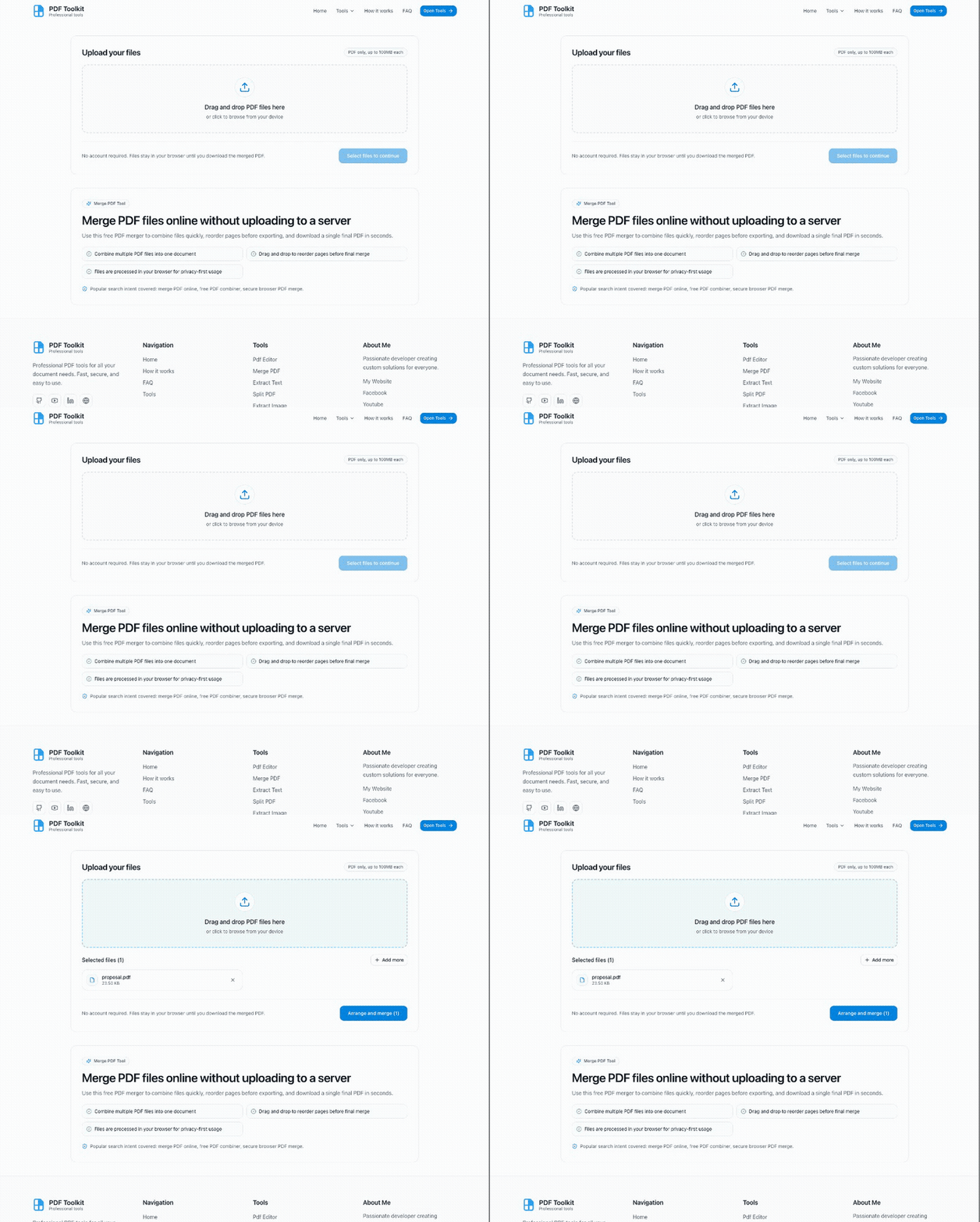
This GIF shows the full flow: upload PDF files, continue to the arrange screen, reorder files, open the merge dialog, and review the download order.
How to Merge PDF Files (Step by Step)
Open the Merge PDF Tool
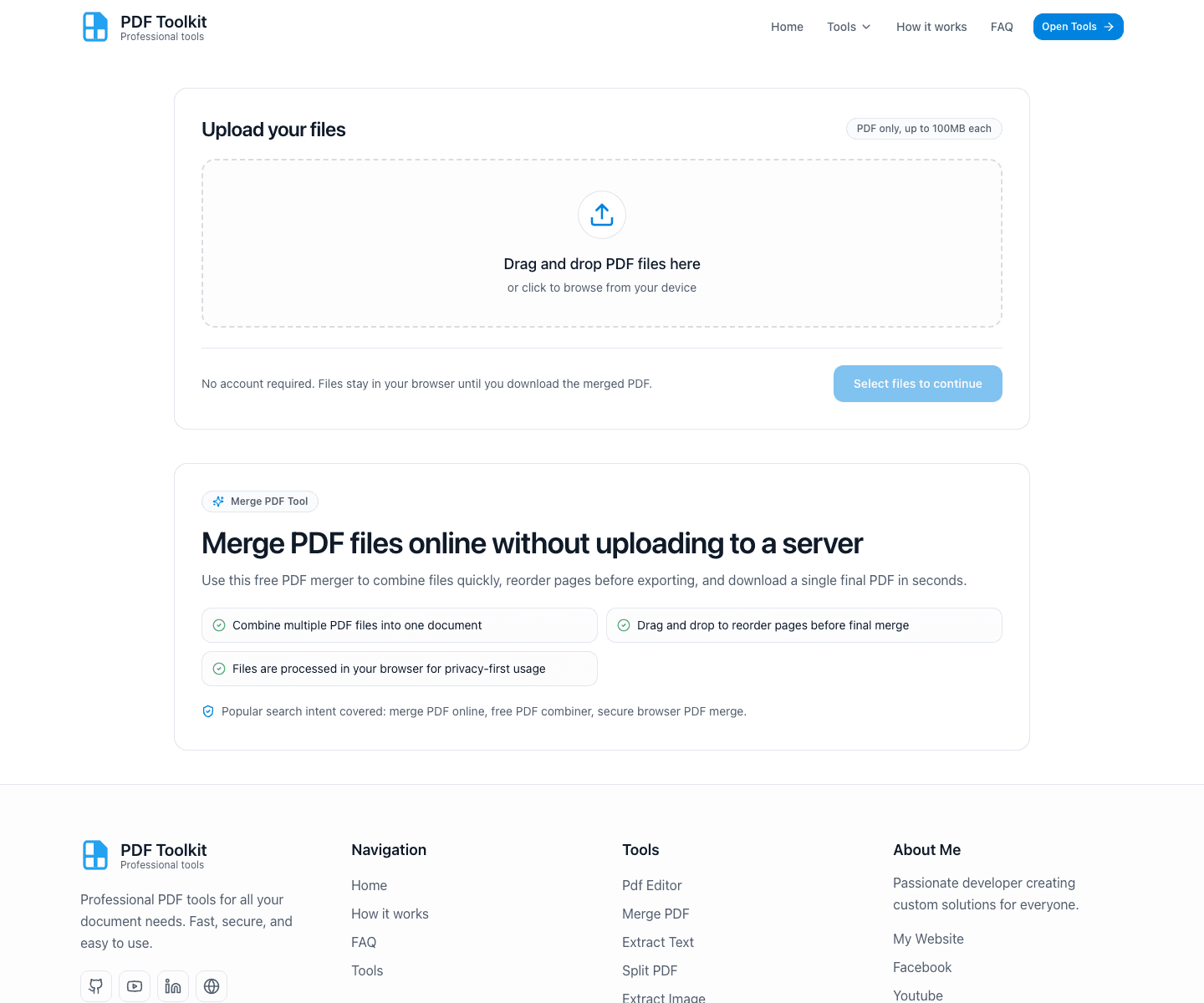
Visit the Merge PDF page and locate the upload card labeled Upload your files. You can drag PDF files into the drop area or click to browse from your device.
Upload Files and Continue to Arrange

After adding your PDFs, the tool lists the selected files and enables the Arrange and merge (N) button.
- Use Add more to add extra PDFs before continuing.
- Remove any file you do not want included.
- Click Arrange and merge (3) (or your file count) to move to the next screen.
Review the Arrange Screen
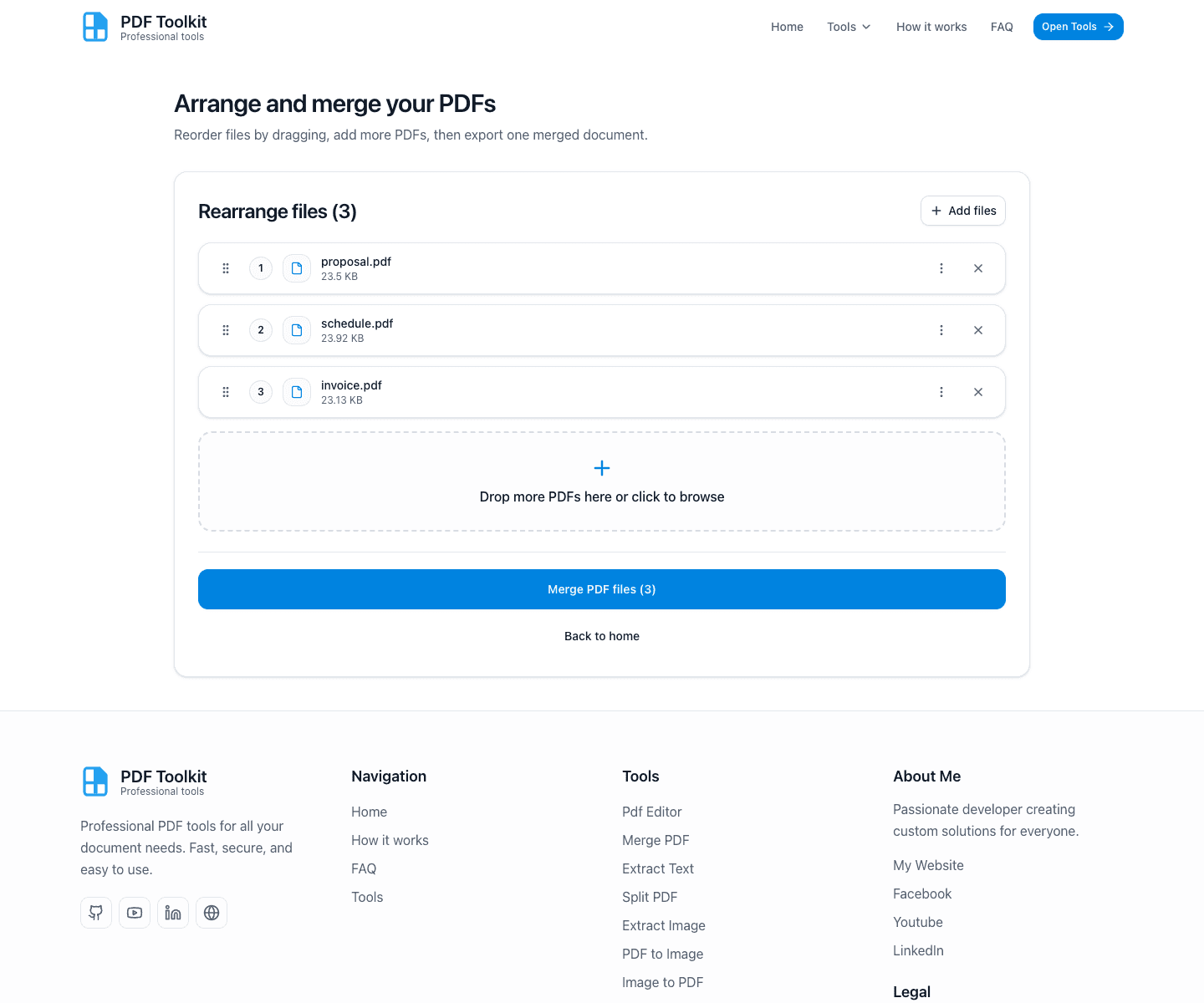
In Arrange and merge your PDFs, you can reorder files, add more files, remove files, and then click Merge PDF files (N) when ready.
Reorder Files Before Merging
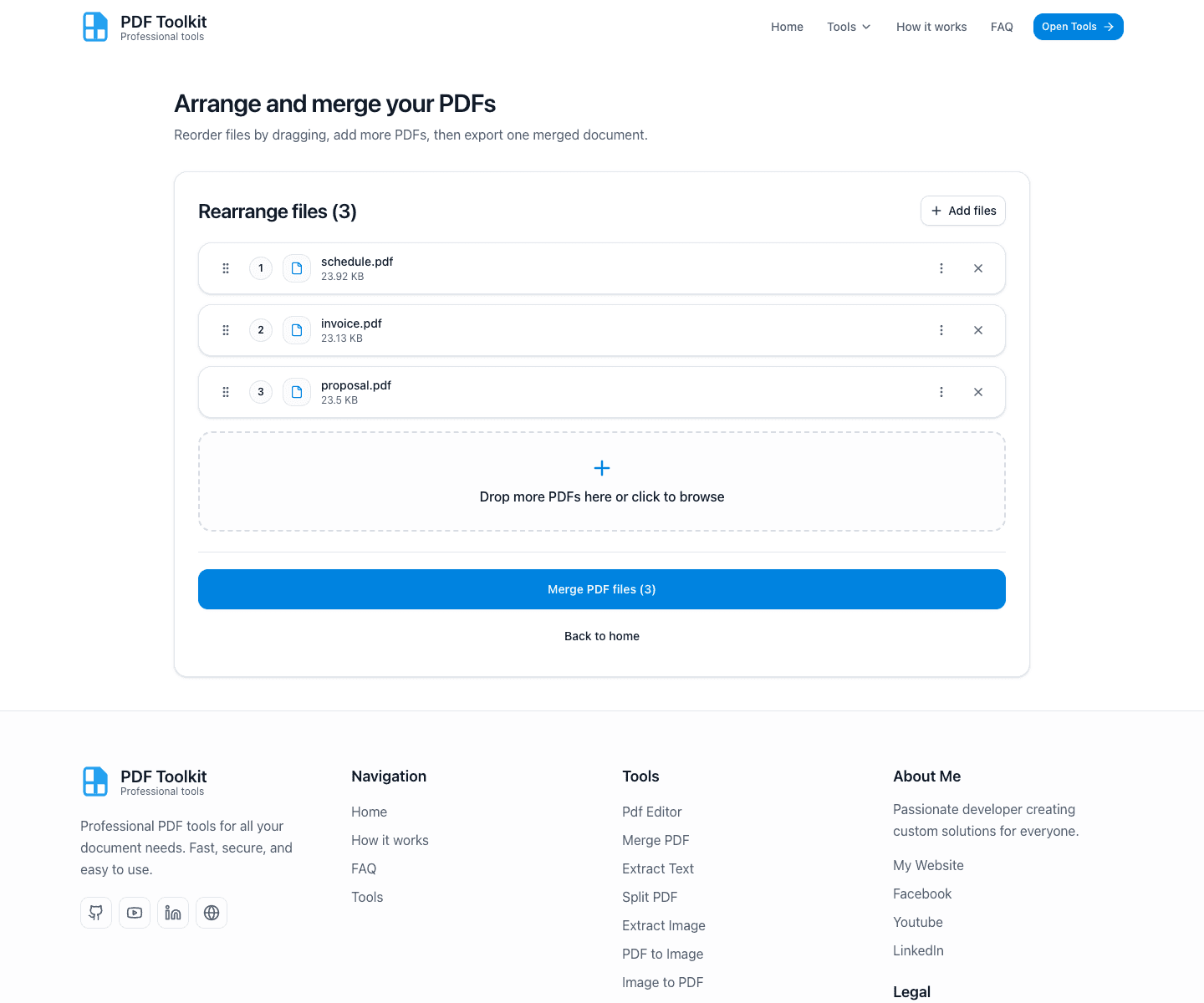
Change the final merge order before exporting. You can drag files by the handle or use the Move options menu (for example, Move to last).
The order shown here becomes the final page order in the merged PDF.
Open the Merge Download Dialog
Click Merge PDF files (N) to open the dialog that prepares the final download.
Rename and Download the Merged PDF
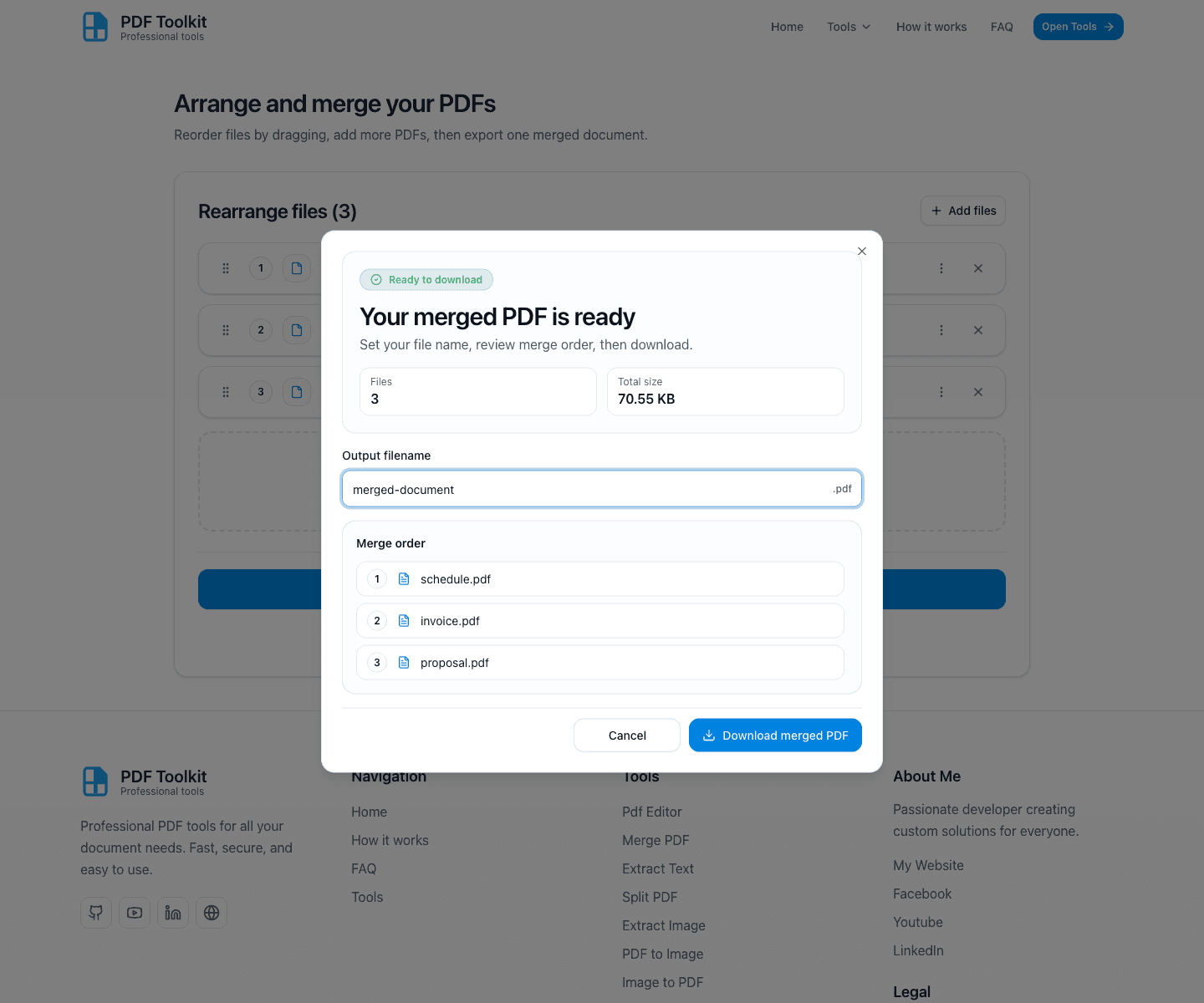
In the Your merged PDF is ready dialog, you can rename the file in Output filename and review the Merge order list before downloading.
- Check the file count and total size summary.
- Confirm the merge order matches your intended output.
- Click Download merged PDF to save the final file.
Tips Before You Merge
- Double-check file order on the arrange screen before opening the dialog.
- Use the move menu if drag-and-drop is difficult on your device.
- Keep file names clear so the merge order is easy to review.
- If needed, go back and add/remove files before downloading.
Try Merge PDF Now
Combine PDFs quickly and securely in your browser using the live Merge PDF tool.
Open Merge PDF Tool