This tutorial shows how to use the PDF Extract Text tool step by step on the live PDF Toolkit site. You will learn how to upload a PDF, select only the pages you want, apply a custom page range, extract readable text into the Note Editor, and then copy or download the output as a TXT file.
Why Use PDF Extract Text?
Readable Text Output
Extract plain, selectable text from text-based PDFs for notes, analysis, and reuse.
Page-Level Control
Choose specific pages, use a custom range, and configure labels before extracting text.
Private in Browser
Processing happens in your browser, so your PDF content is not uploaded to a server.
Open the live tool and follow along with the same buttons shown in this tutorial.
Open PDF Extract Text ToolQuick Walkthrough (GIF)
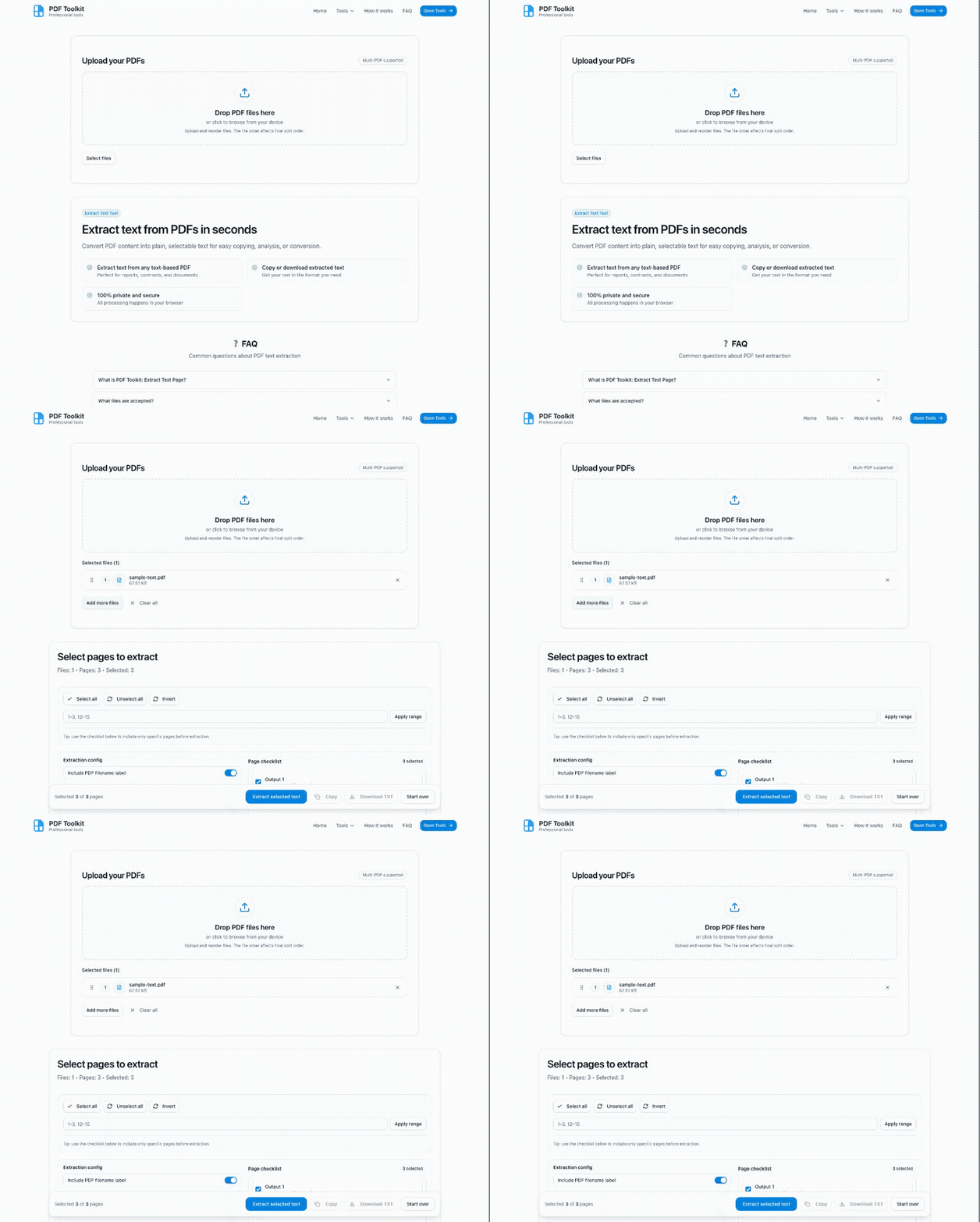
This GIF shows the complete flow: upload PDF, select pages with a custom range, extract text into the Note Editor, then copy or download TXT.
How to Extract Text from PDF (Step by Step)
Open the PDF Extract Text Tool
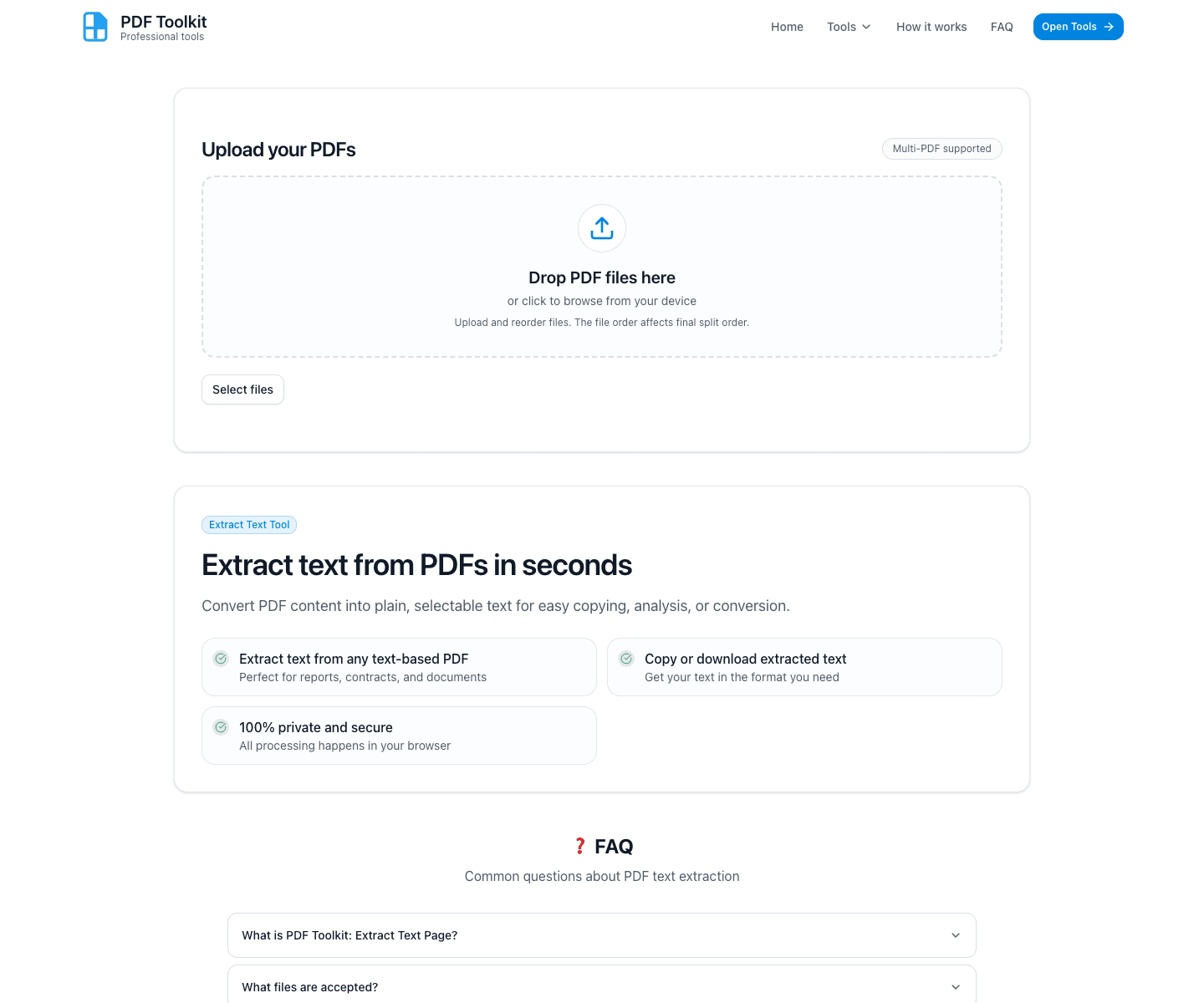
Visit the tool page and look for the upload card with the Select files button. The page also shows a feature section explaining privacy and text extraction capabilities.
Upload Your PDF and Review the Page Selection Screen
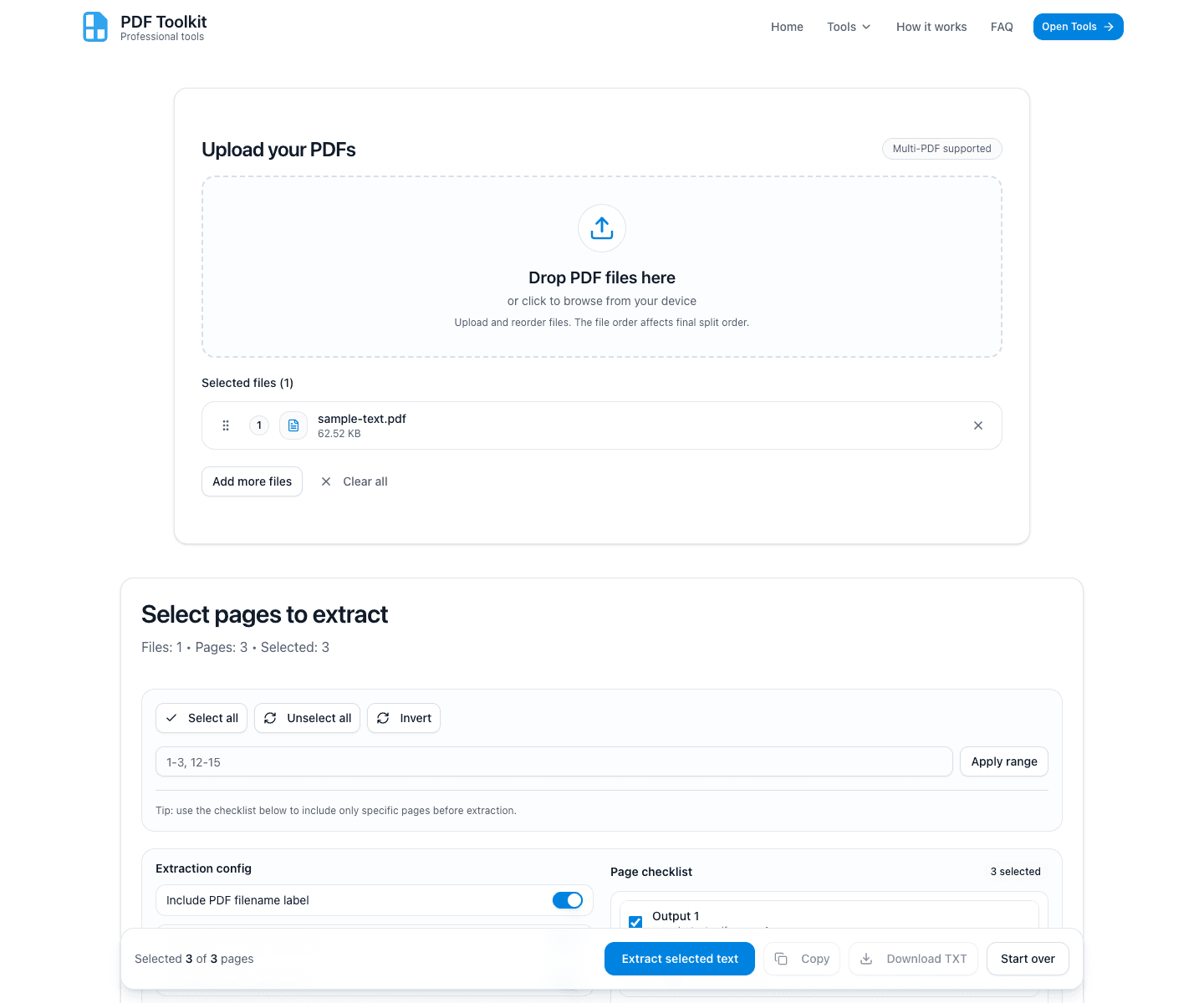
After uploading, the tool loads the Select pages to extract section. You can see the file list, page count, selected count, extraction config toggles, page checklist, and the Note Editor area.
- Use Select all, Unselect all, or Invert for quick page selection changes.
- The page checklist lets you toggle pages one by one.
- The sticky bottom bar contains the main actions: Extract selected text, Copy, and Download TXT.
Apply a Custom Page Range (Optional)
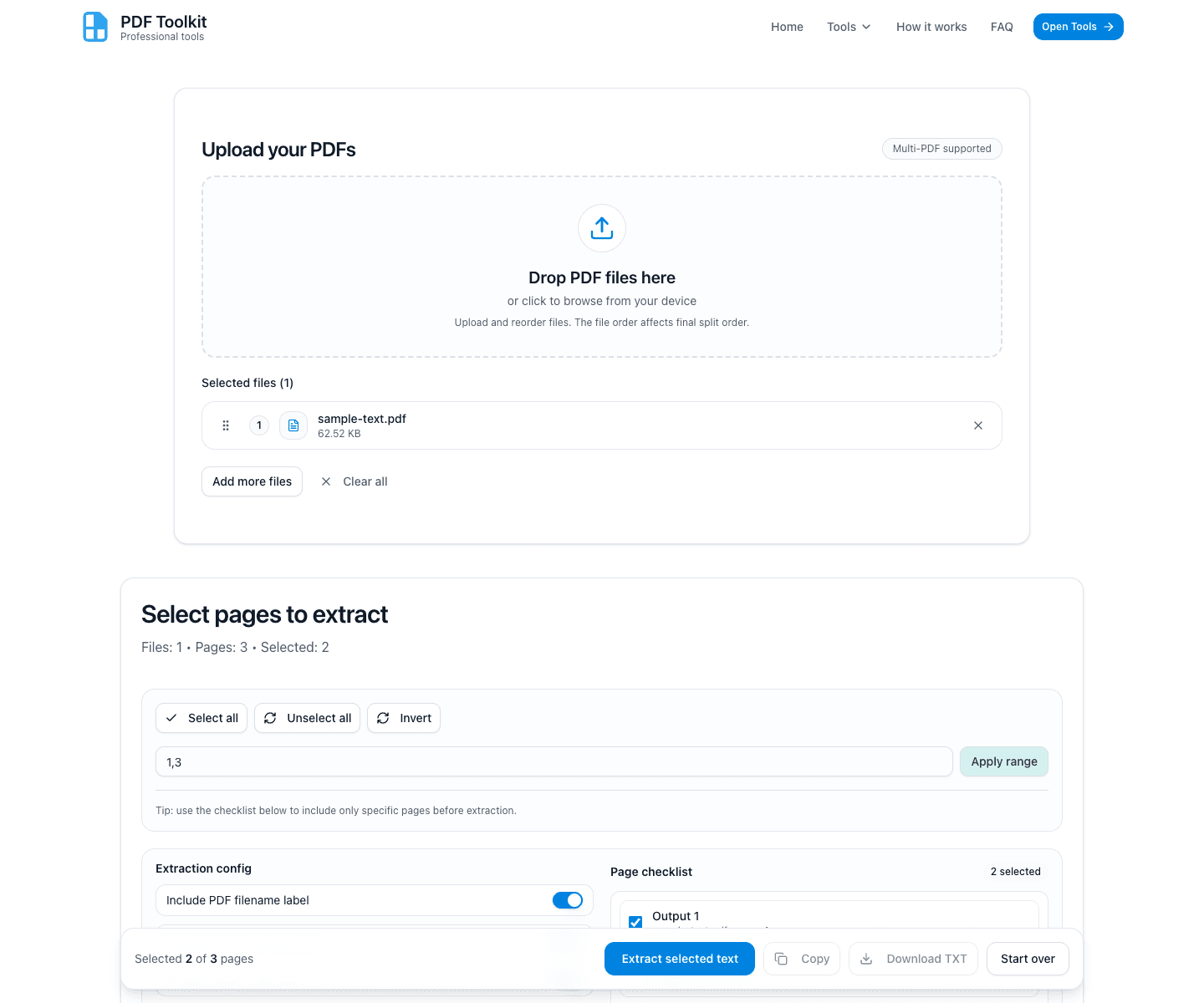
If you only need specific pages, type a custom range (for example 1,3 or 1-5, 8) and click Apply range.
The tool updates both the selected count and the page checklist so you can confirm exactly which pages will be extracted.
Click “Extract Selected Text”
Once your page selection and extraction config are set, click Extract selected text. The tool reads the selected pages and writes the output into the Note Editor below.
Review and Edit the Extracted Text in the Note Editor
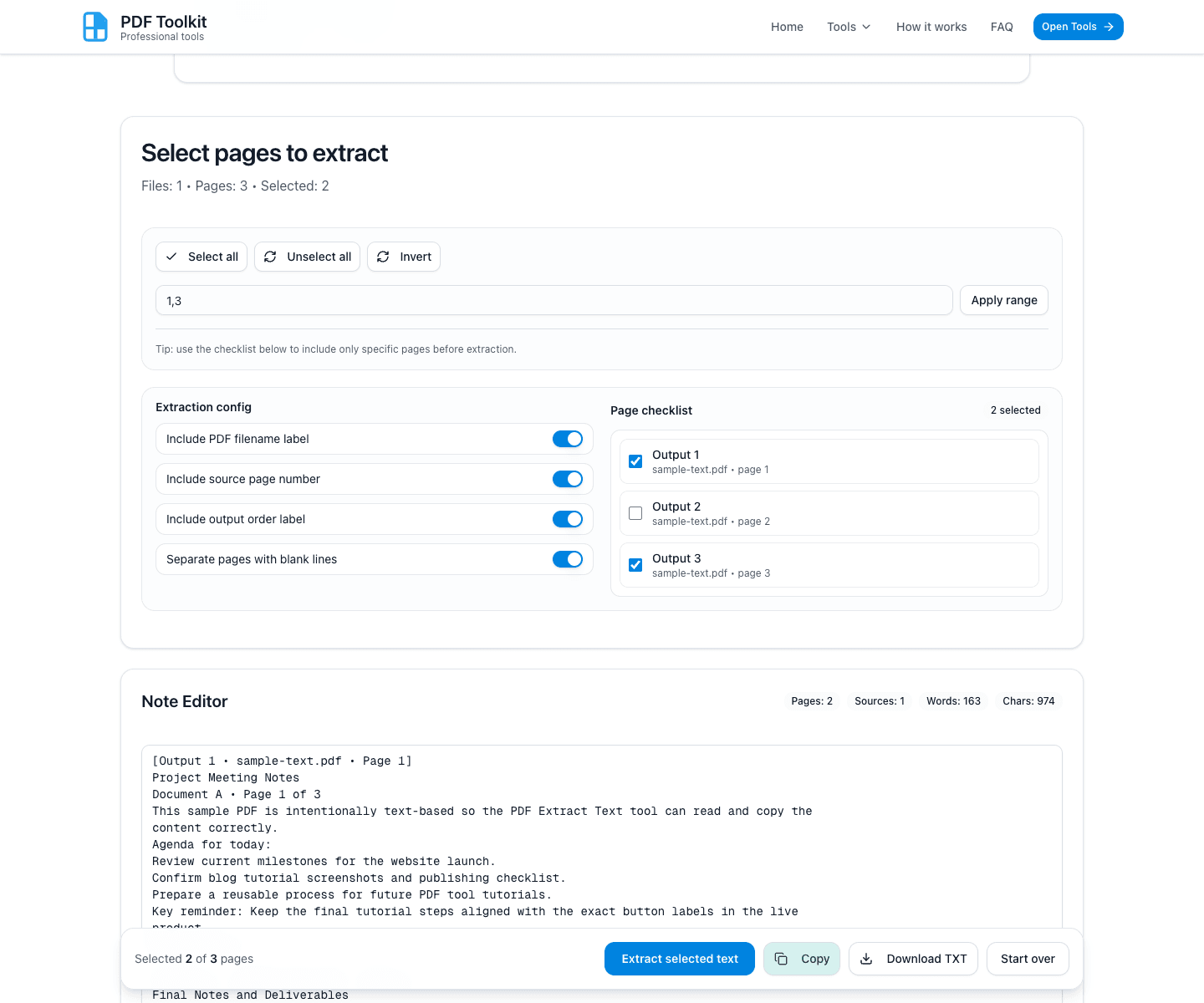
The extracted content appears inside the Note Editor. You can edit the text manually before copying or downloading it.
- The top badges show counts for pages, sources, words, and characters.
- The extracted output can include labels like PDF filename, source page number, and output order (depending on your config switches).
- The bottom bar enables Copy and Download TXT after extraction succeeds.
Copy or Download the TXT Output
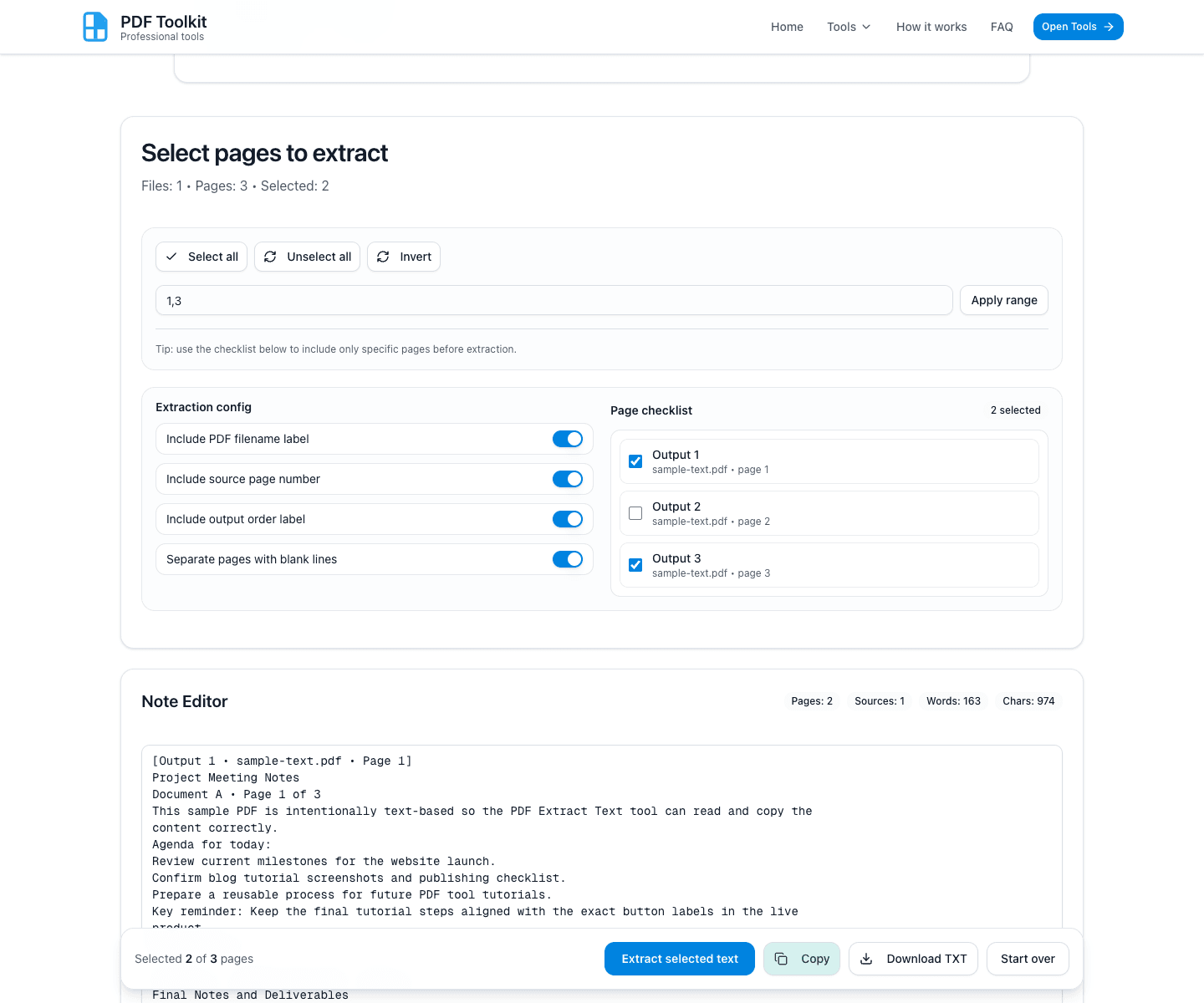
Click Copy to copy everything from the Note Editor to your clipboard. The button changes to a success state (Copied) briefly.
Click Download TXT if you want a text file you can save, share, or import into another tool.
Best Practices and Notes
- This tool works best with text-based PDFs. Scanned/image PDFs may not return readable text without OCR.
- Use the custom range input to quickly narrow extraction to specific pages.
- Keep the filename/page labels enabled if you want traceable notes from multiple documents.
- Use Start over when you want to load a different PDF and reset the editor.
Try the Tool
Use the live PDF Extract Text tool to convert PDF content into plain text securely in your browser.