This tutorial shows how to use the Markdown to PDF tool step by step on the live PDF Toolkit site. You will learn how to edit Markdown in the split-screen editor, customize theme and paper size, set PDF metadata, open the full preview dialog, and export your final PDF.
Why Use Markdown to PDF?
Write and Export in One Screen
Edit Markdown and preview the PDF layout side by side before exporting the final document.
Theme, Paper, and Metadata Controls
Choose theme and paper size, toggle layout options, and add optional title/author metadata.
Private Browser Export
Build and export your Markdown PDF locally in the browser without sending your content to a server.
Open the live Markdown to PDF tool and follow the same toolbar buttons and preview actions shown below.
Open Markdown to PDF ToolQuick Walkthrough (GIF)
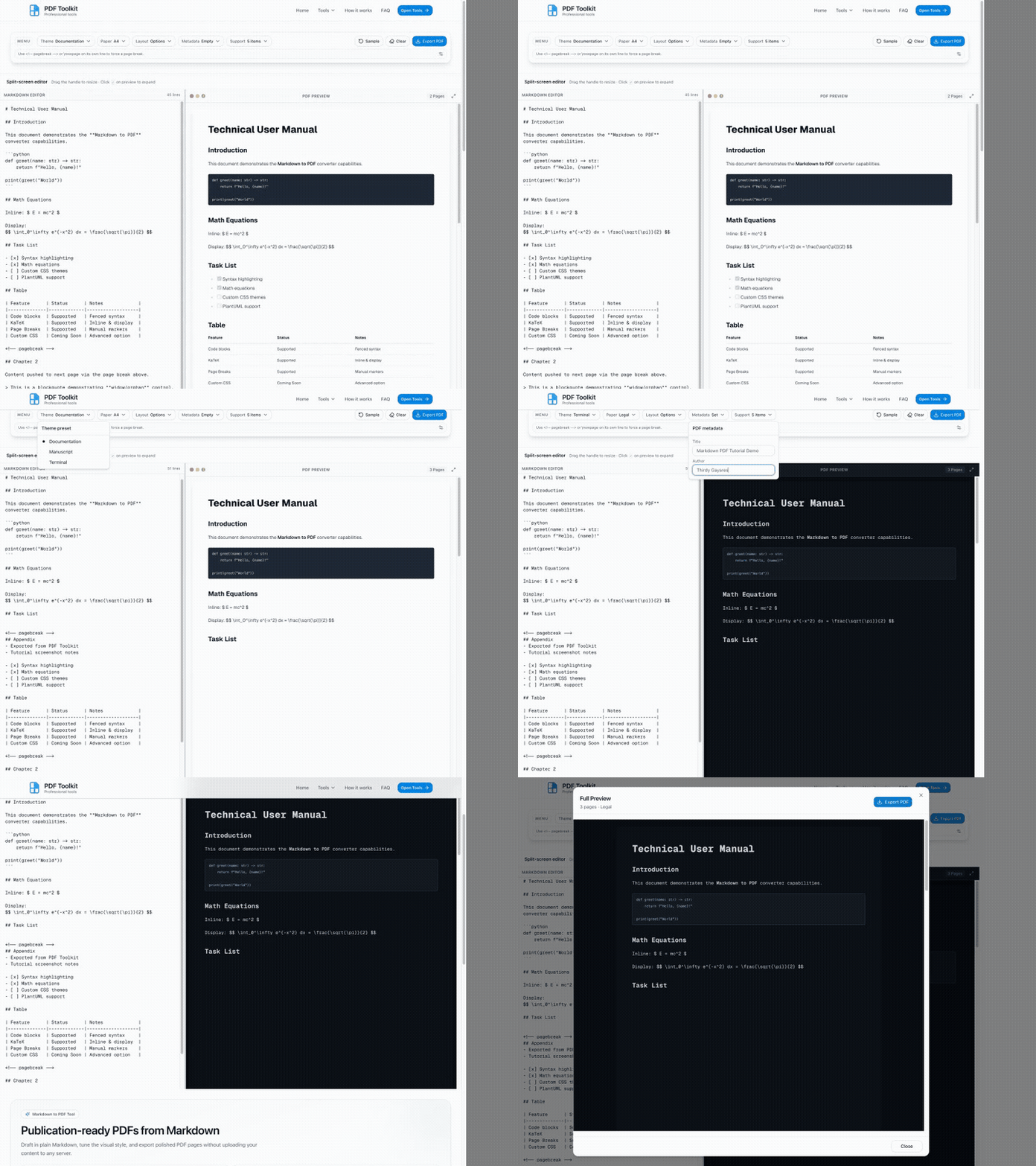
This GIF shows the full flow: edit markdown, preview live updates, customize theme/paper/metadata, open full preview, and export PDF.
How to Convert Markdown to PDF (Step by Step)
Open the Markdown to PDF Tool
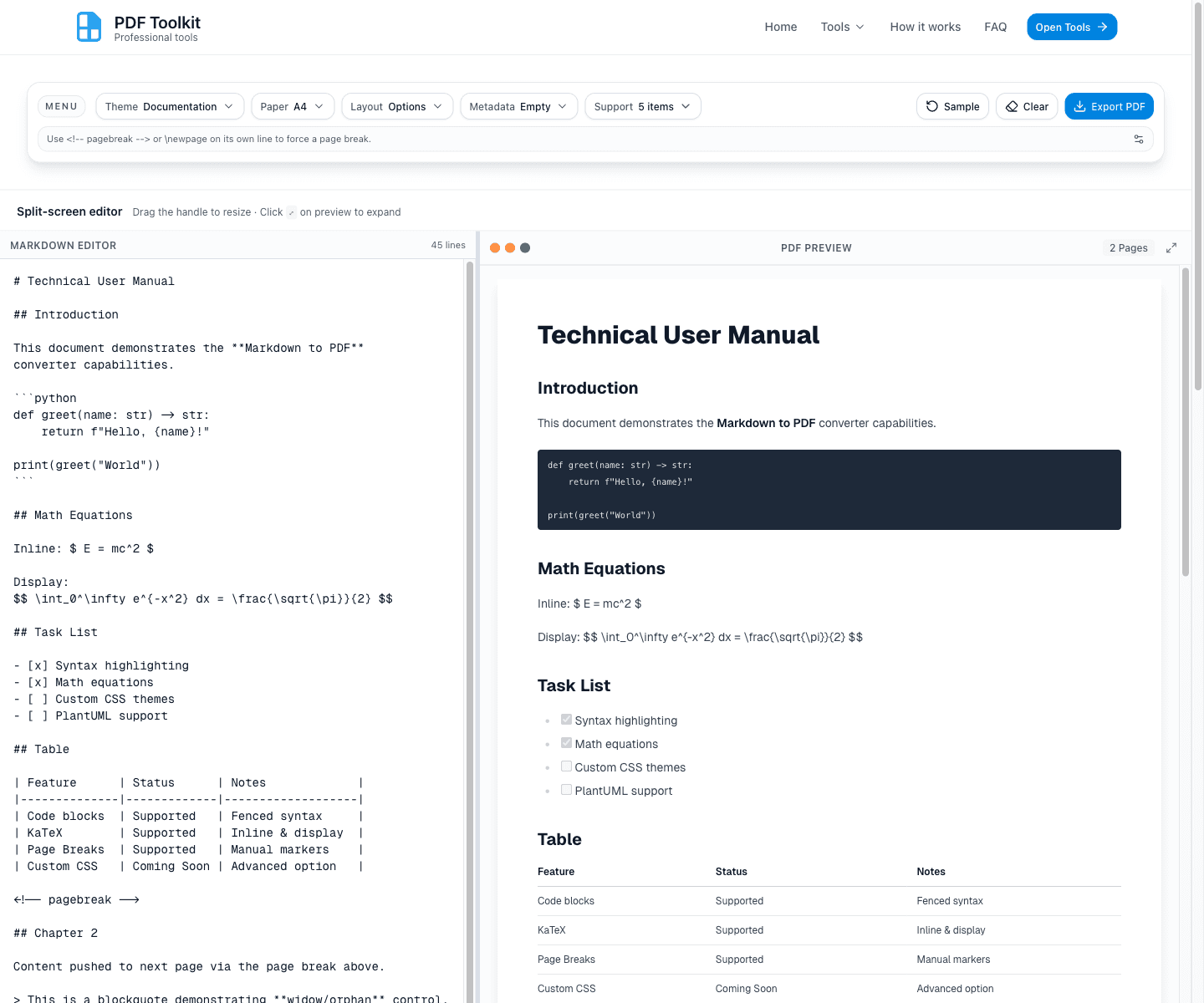
Open the tool and review the top toolbar and split-screen workspace. The page includes a sticky configuration menu plus a Markdown Editor and PDF Preview side by side.
Edit Markdown and Watch the PDF Preview Update Live
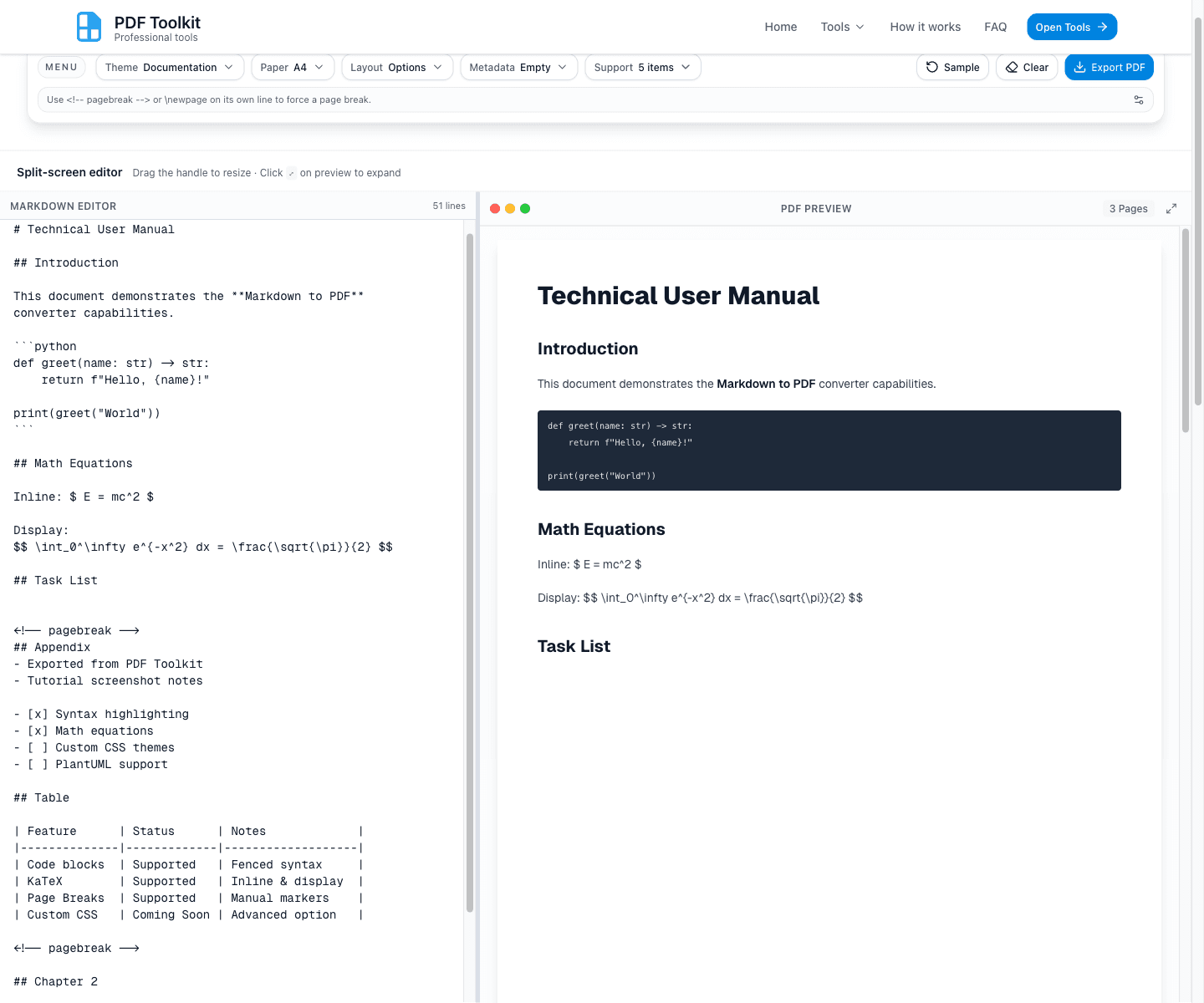
Type or paste your Markdown into the Markdown Editor pane. The PDF Preview pane updates automatically and shows the current page count.
- Use <!-- pagebreak --> or \newpage on its own line to force a page break.
- The preview page count updates as your content grows or page breaks are added.
- You can drag the split handle to resize the editor vs preview columns.
Configure Theme, Paper Size, and PDF Metadata

Use the sticky toolbar to control how the exported PDF looks and behaves.
- Theme: switch between Documentation, Manuscript, and Terminal.
- Paper: choose A4, Letter, or Legal.
- Layout: toggle layout options like text justification and row split behavior.
- Metadata: set optional PDF Title and Author.
Open the Full Preview Dialog
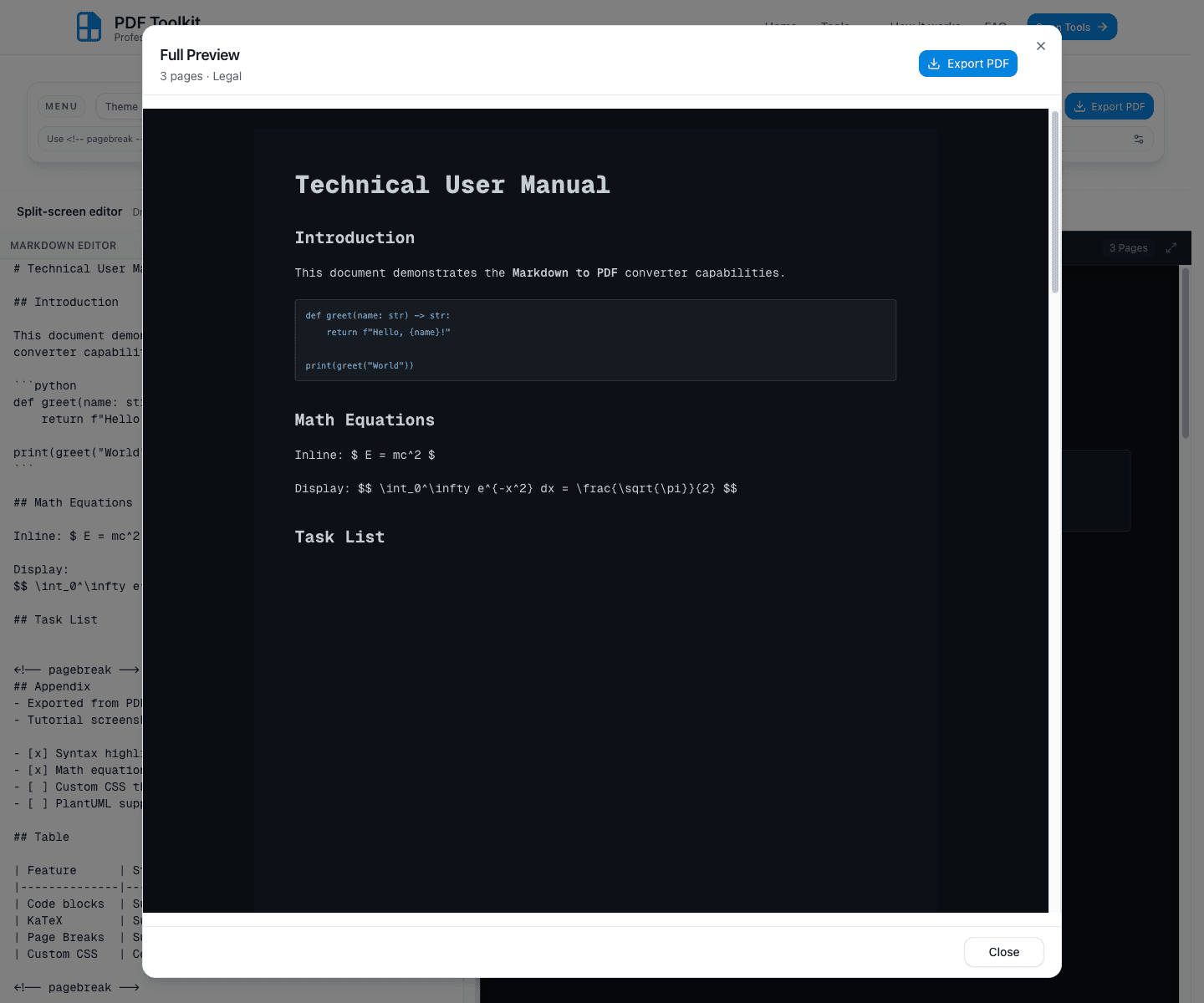
Click the expand icon in the preview pane to open the Full Preview dialog. This shows your pages in a larger scrollable view with the current page count and paper size (for example, 3 pages · Legal).
The dialog also includes its own Export PDF button and a Close action.
Click “Export PDF” to Download the File
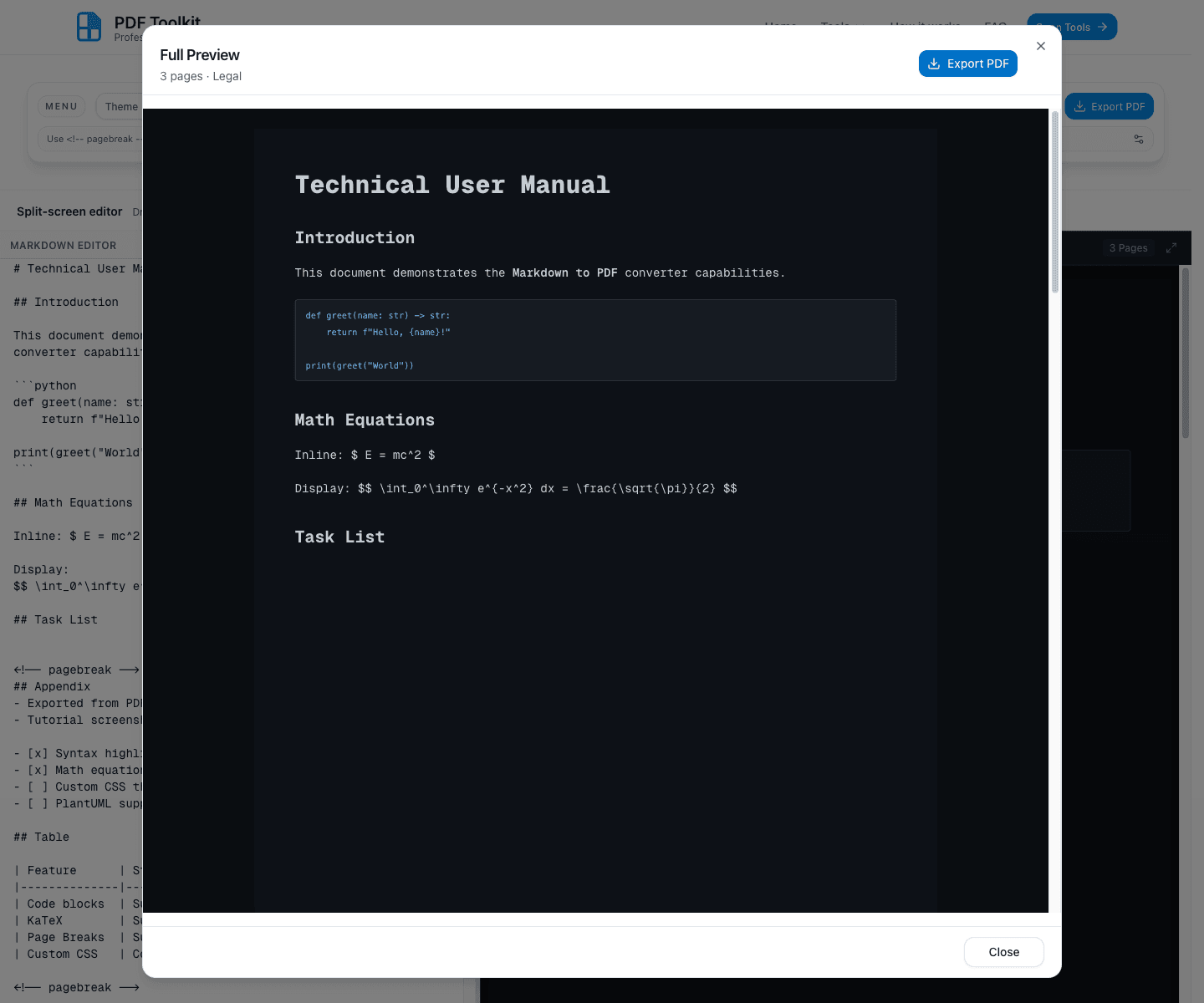
Click Export PDF from the toolbar or the full preview dialog. The tool generates and downloads a PDF file using the current paper size, such as document-legal.pdf when Paper is set to Legal.
Best Practices and Notes
- Use page breaks (<!-- pagebreak --> or \newpage) to control where sections start in the PDF.
- Open Full Preview before export when your document spans multiple pages.
- Choose the paper size first if the page width affects table/code layout.
- Use the toolbar Sample button to reload the demo content while learning the tool.
- Use Clear when starting a new document from scratch.
Try the Tool
Use the live Markdown to PDF tool to write, preview, and export polished PDFs securely in your browser.