This tutorial shows how to use the Page Number PDF tool step by step on the live PDF Toolkit site. You will learn how to upload a PDF, configure page number placement and format, add page numbers, rename the output file, and download the updated PDF.
Why Use Page Number PDF?
Add Page Numbers Fast
Insert page numbers into an existing PDF in seconds without switching to a desktop editor.
Flexible Placement and Format
Choose horizontal/vertical position, number style, and font size before generating the output PDF.
Private Browser Processing
The tool updates your PDF in the browser and opens a download dialog when processing is complete.
Follow the same button labels and option names shown below in the live Page Number PDF tool.
Open Page Number PDF ToolQuick Walkthrough (GIF)
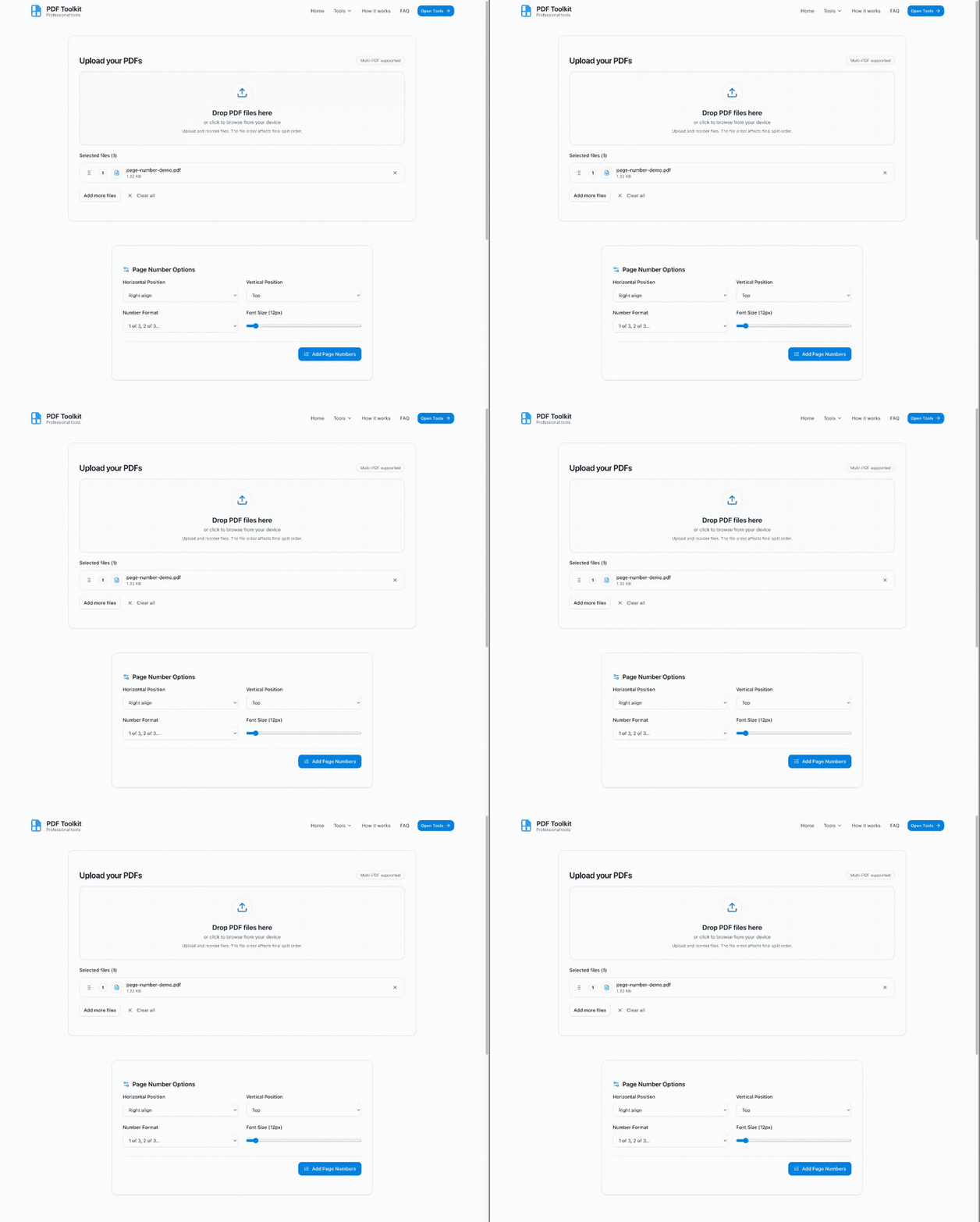
This GIF shows the full flow: upload a PDF, configure page number options, click Add Page Numbers, rename the file, and download the numbered PDF.
How to Add Page Numbers to a PDF (Step by Step)
Open the Page Number PDF Tool
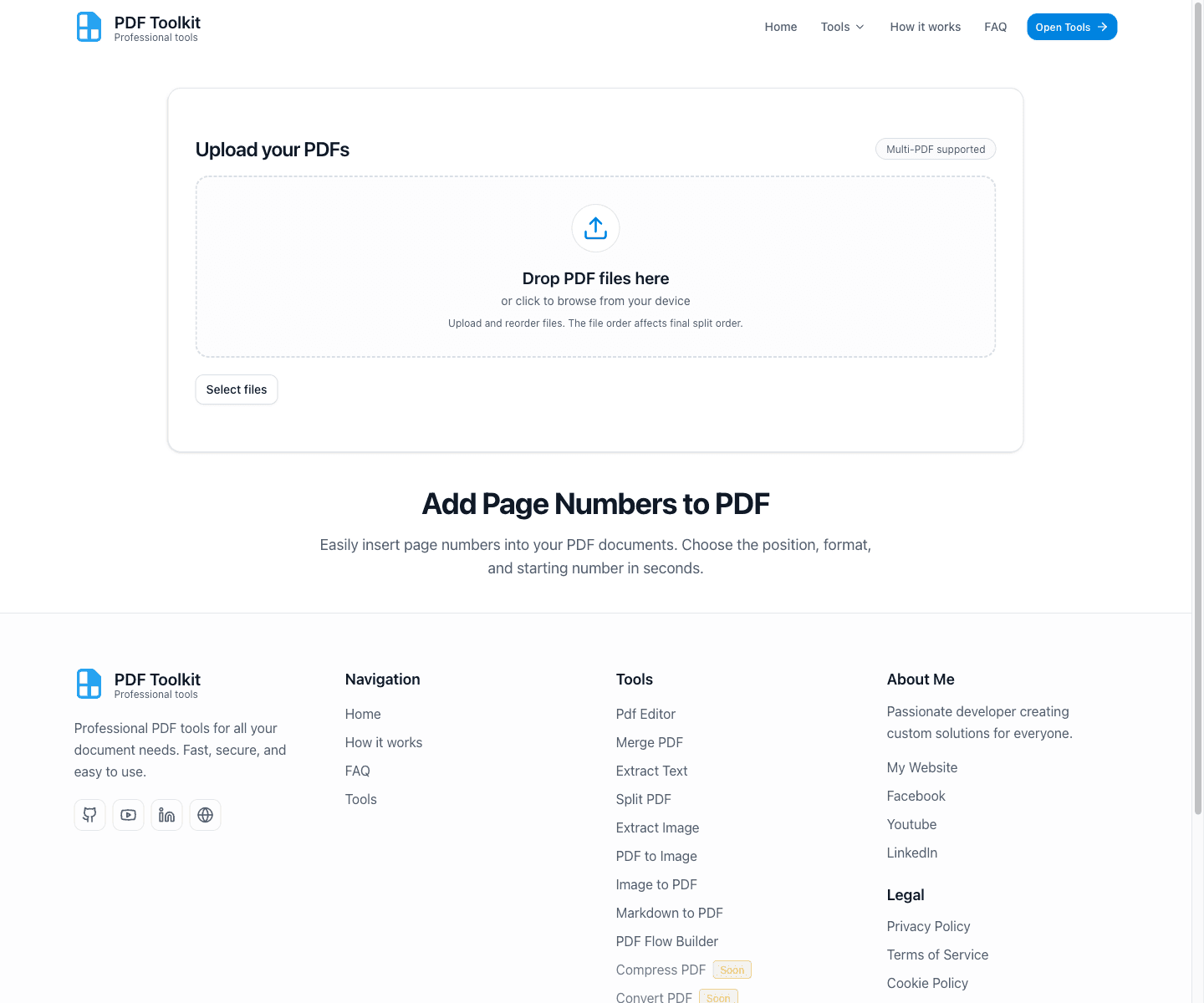
Open the tool and start at the upload card. You will see the drag-and-drop area plus the page title Add Page Numbers to PDF below it.
Upload Your PDF and Open the Page Number Options
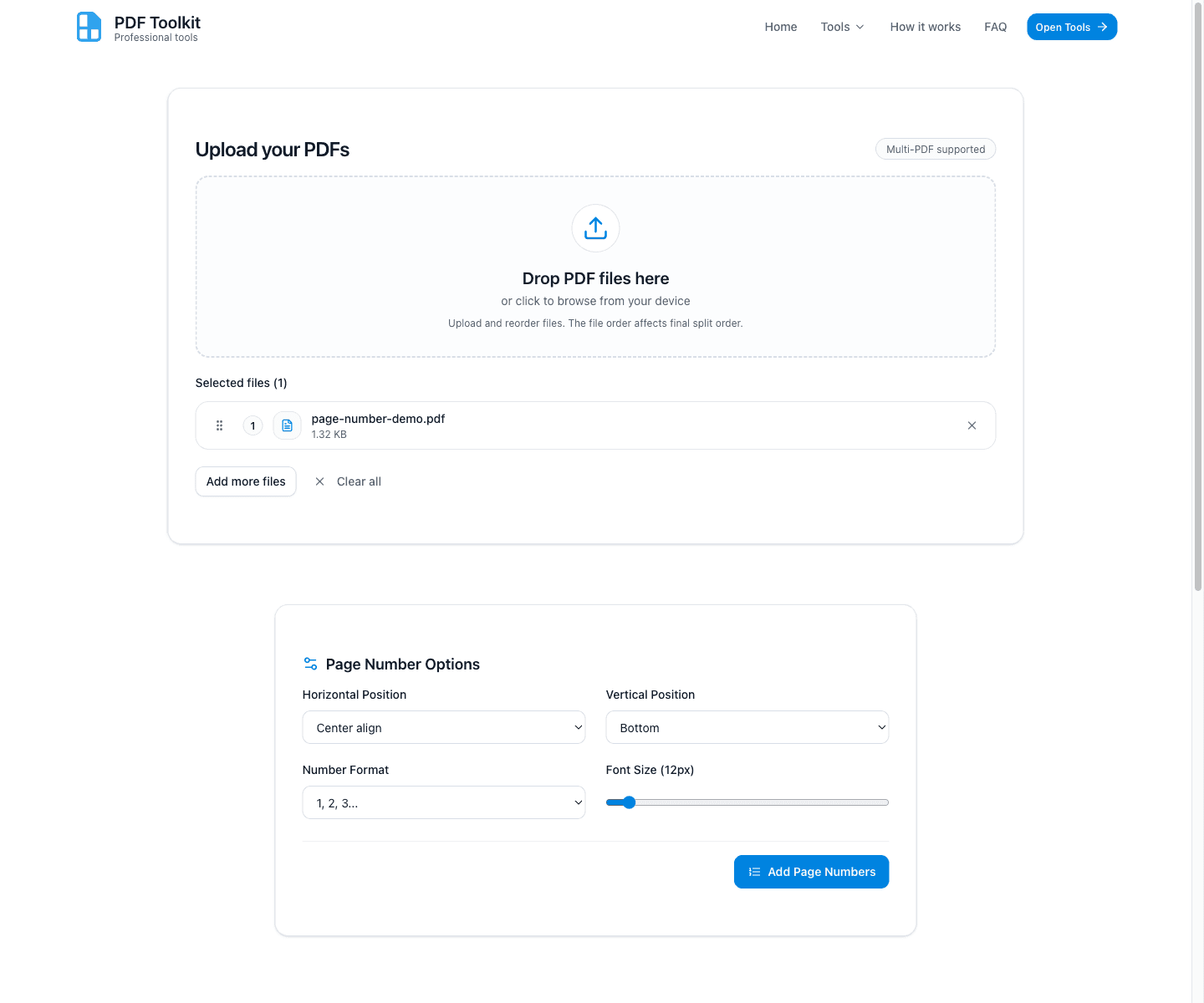
Upload your PDF using the drop area or the Select files button. After the file is added, the tool reveals the Page Number Options card.
The default configuration usually starts with Center align, Bottom, and the simple number format (1, 2, 3...).
Configure Position, Number Format, and Font Size

Set how the page number should appear on each page using the options card.
- Horizontal Position: Left align, Center align, or Right align
- Vertical Position: Top or Bottom
- Number Format: 1, 2, 3..., 1 of total, or - 1 - style
- Font Size: Use the slider to make the page numbers smaller or larger
Click “Add Page Numbers” to Generate the Updated PDF
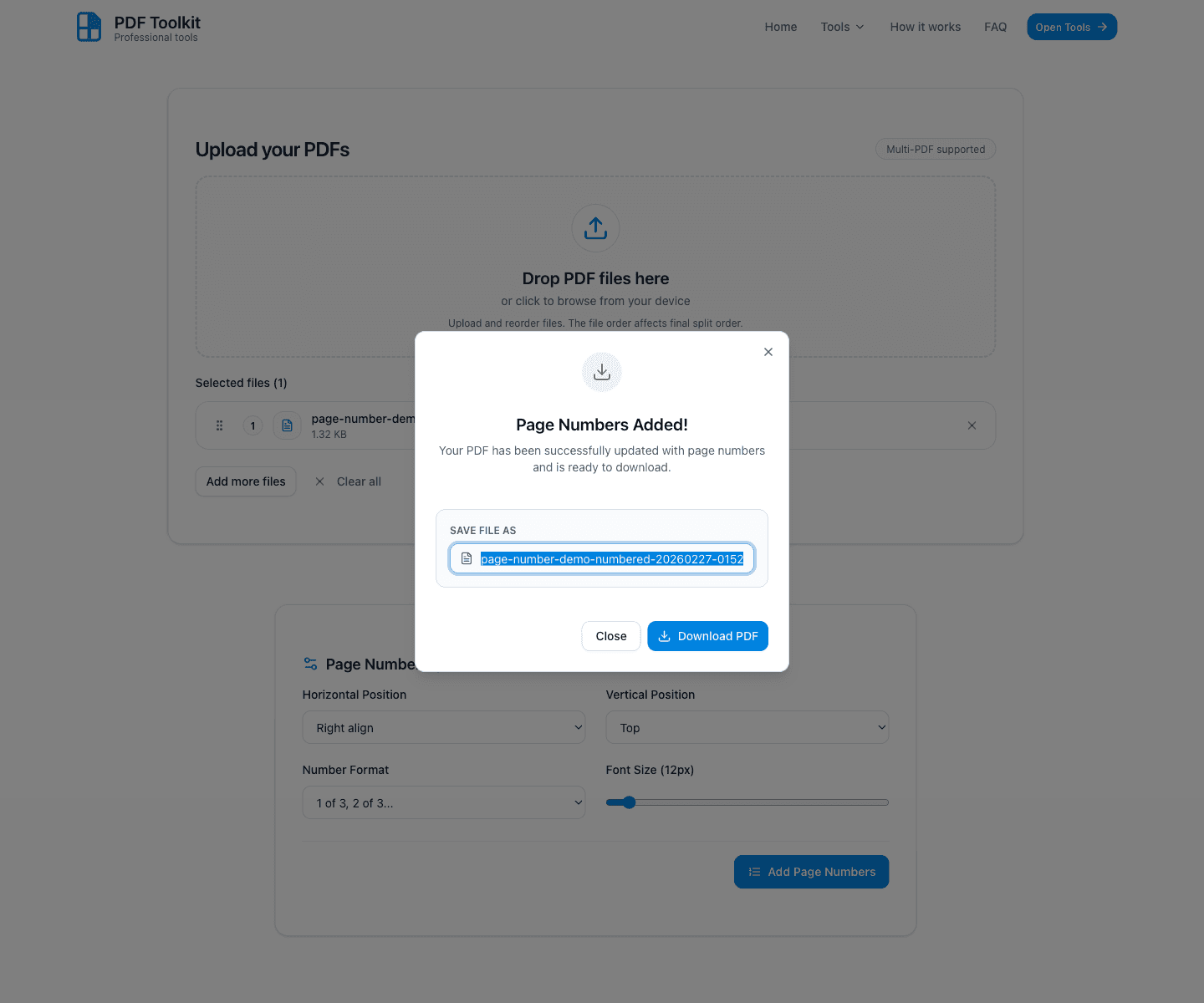
Click Add Page Numbers. When processing finishes, a success dialog appears with the title Page Numbers Added! and a pre-filled output filename.
Rename the File (Optional) and Download the Numbered PDF
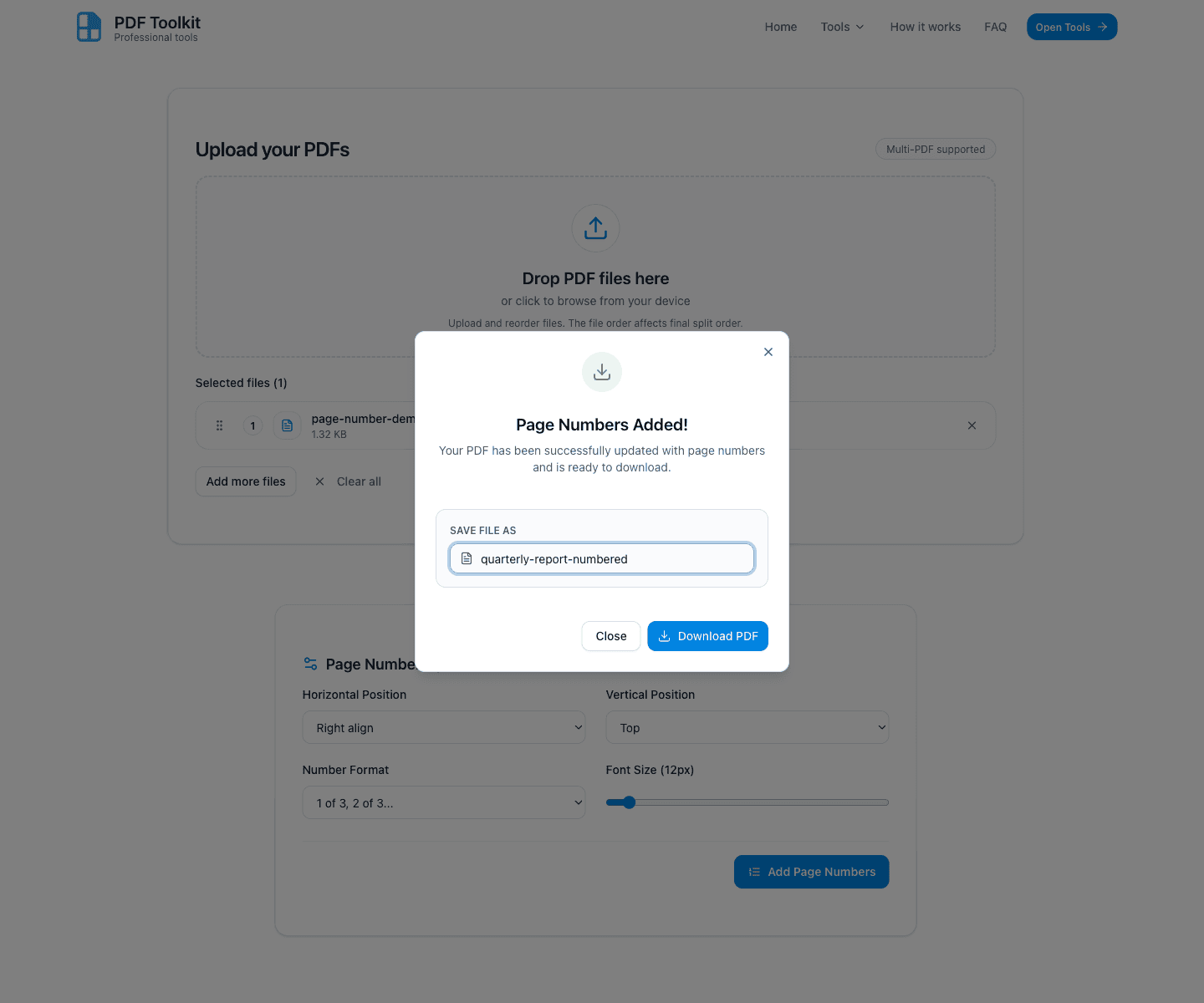
In the dialog, edit the Save file as field if you want a custom filename (for example, quarterly-report-numbered).
Click Download PDF to save the updated file to your device.
Tips for Better Results
- Use Bottom + Center for traditional document page numbering.
- Use Top + Right when the footer area already has signatures or notes.
- Choose 1 of total format for reports and client documents where total pages matter.
- Increase the font size slider if the document will be printed or viewed on mobile screens.
- Use the dialog filename field before downloading so the final file is easy to identify later.
Try the Tool
Use the live Page Number PDF tool to add page numbers to your PDF and download the updated file in a few clicks.