How to Build Your First FastAPI App – Step-by-Step

Thirdy Gayares
Author
Important Note
Before starting, make sure you have Python 3.9 or higher installed on your machine. Newer versions of FastAPI no longer support very old Python versions. You can download and install Python from the official website: https://www.python.org/
1. Check Python Version
python --version2. Create a Virtual Environment
python -m venv .venv
3. Activate Virtual Environment
On Windows:
.venv\Scripts\activateOn macOS / Linux:
source .venv/bin/activateYou will know it worked when you see the environment name at the start of your terminal prompt, like this:
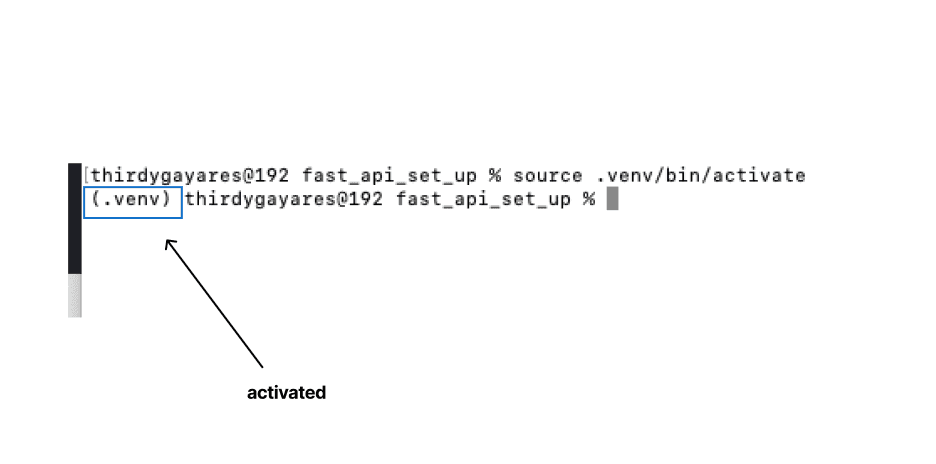
This means all Python packages you install (like FastAPI, Uvicorn, etc.) will now be installed inside this environment only – not system-wide.
If you don't see (.venv) in the terminal, that means the activation failed. Try again or check the path.
4. Install FastAPI and Uvicorn
pip install fastapi uvicornFastAPI is the framework. Uvicorn is the server that runs your app. Tip: you can also run pip install "fastapi[standard]". This installs FastAPI, Uvicorn, and other useful extras in one command.
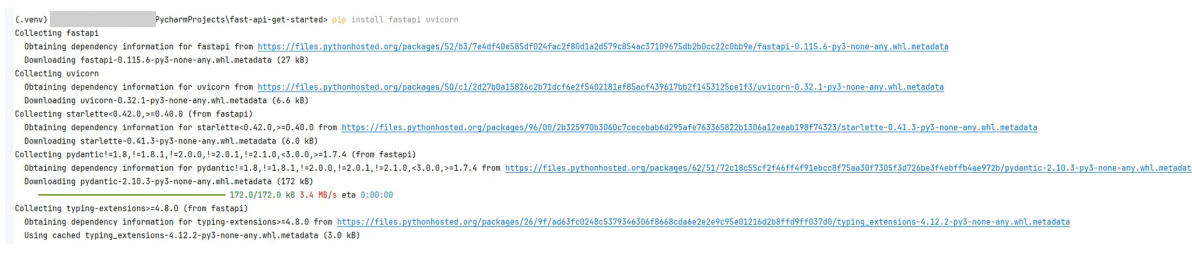
5. Create main.py
from fastapi import FastAPI

app = FastAPI()

@app.get("/")
def read_root():
    return {"message": "Hello, FastAPI!"}
6. Run the FastAPI App
uvicorn main:app --reloadThe --reload flag restarts the server every time you save your code. Use it only during development.
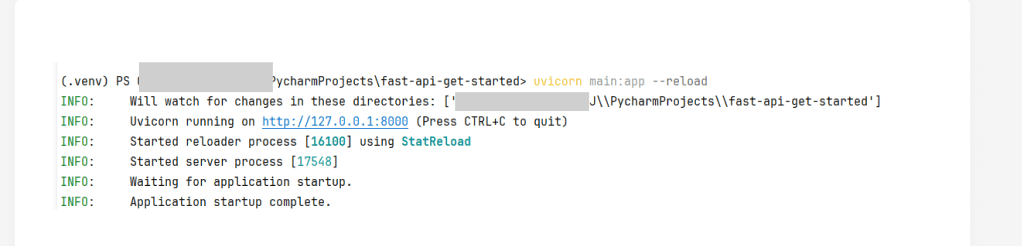
7. Access FastAPI in Browser
http://127.0.0.1:8000{
"message": "Hello, FastAPI!"
}8. Explore FastAPI Docs
Swagger UI:
http://127.0.0.1:8000/docsReDoc:
http://127.0.0.1:8000/redoc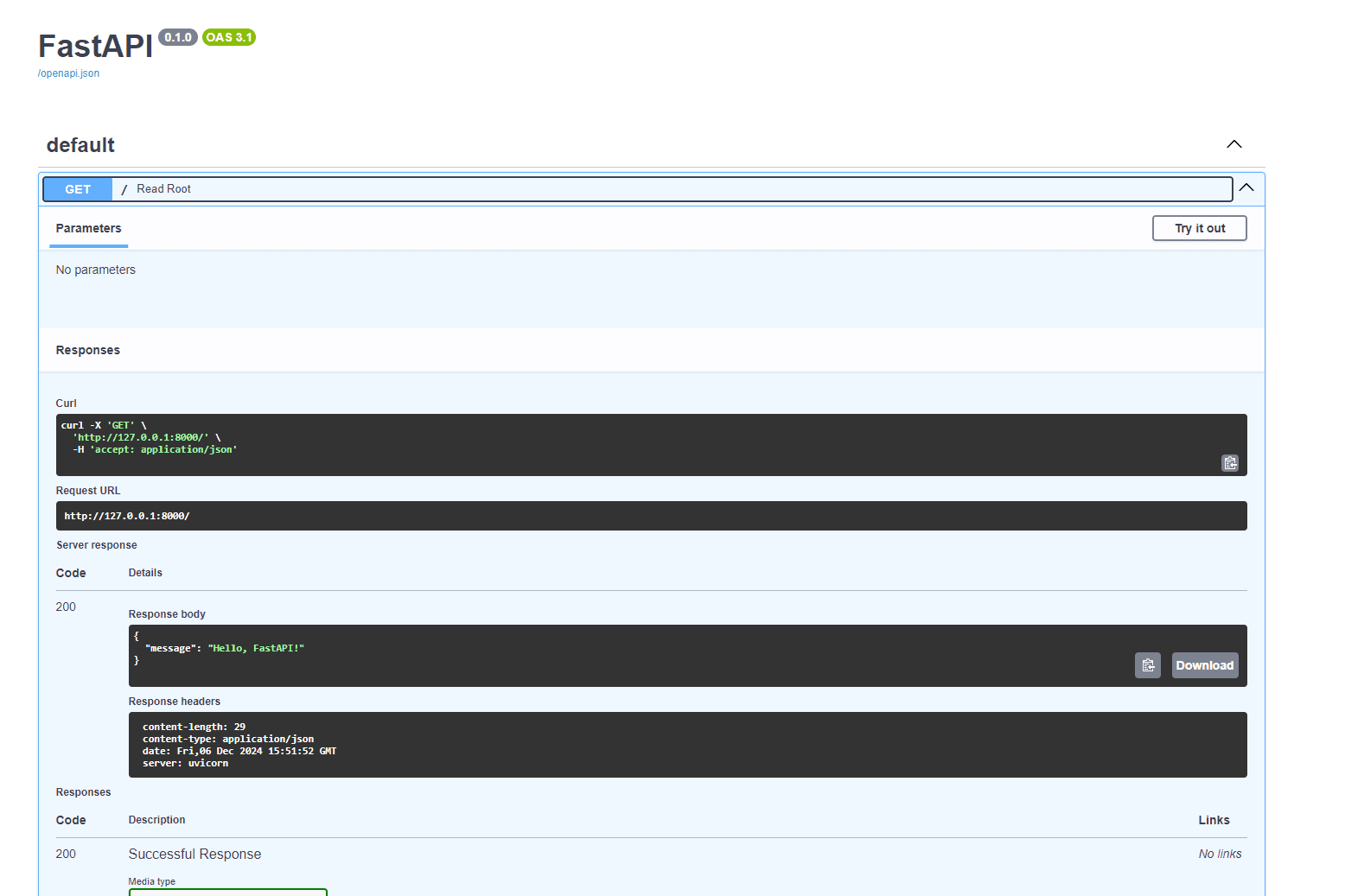
9. Add More Routes
Add this to main.py, below your first route:
from typing import Optional

@app.get("/items/{item_id}")
def read_item(item_id: int, q: Optional[str] = None):
    return {"item_id": item_id, "q": q}
q is an optional query parameter. If you do not pass it, its value will be null in the response.
Test it in browser:
http://127.0.0.1:8000/items/42?q=test{
"item_id": 42,
"q": "test"
}10. Create requirements.txt (Optional)
Save a list of your installed packages:
pip freeze > requirements.txtLater, on another machine, install them all again with:
pip install -r requirements.txt